Despite how it sounds, it isn’t about being paranoid about your employees or burying them in endless security hurdles. It’s simply a sensible way to make sure that whenever someone tries to access your business systems, you verify who they are and if it makes sense.
It boils down to this: just because someone is on the office Wi-Fi or knows a password, that doesn’t mean they’re safe. Every single access request needs to be looked at based on the person, their device, what they’re trying to reach and how much risk is actually involved.
According to the NIST Zero Trust guidelines, you shouldn’t just trust someone because they’re in the office or because they’ve logged in before. You need to check their identity and permissions every single time before letting them into your sensitive resources.
For an SMB, this does not require replacing every system at once. The strongest starting point is usually much simpler: understand what the business owns, protect employee devices, strengthen identities and remove unnecessary permissions.
What Zero Trust Means in Simple Terms
In the past, business security was pretty much like a castle with a moat.
You had your office, a firewall and a private network. If you were physically inside the building, the system trusted you automatically. If you were outside, you were kept at arm’s length.
That worked fine when everyone sat at the same desks and all your data lived on a server in the closet.

But things look different now. Your sales rep might be logging in from a hotel, your accountant is likely working from their kitchen table and your data is spread across the cloud, various laptops and mobile phones.
The “walls” of the office don’t really exist anymore.
Zero trust replaces the old idea of “inside means safe” with a few practical questions:
- Who is requesting access?
- Is the identity properly verified?
- Is the device recognized and secure?
- Which application or information is being requested?
- Does the user genuinely need that level of access?
- Is there anything unusual about the request?
A normal login from a managed office laptop during working hours may be approved quickly. The same account attempting to access sensitive data from an unknown device or unusual location may require stronger verification or be blocked.
This is sometimes described as “never trust, always verify,” but that phrase can make the approach sound more dramatic than it needs to be. In practice, zero trust means do not rely on assumptions when a security decision can be based on evidence.
The CISA zero-trust guidance explains this as moving away from trusting people based on where they are and instead looking at who they are and what kind of risk they might pose in the moment.
For a smaller business, the goal is simple: if a hacker manages to steal one password, they shouldn’t automatically get the keys to the entire kingdom. Good security should stop them in their tracks before they can do any real damage.
Identity, Device, Application and Data Layers
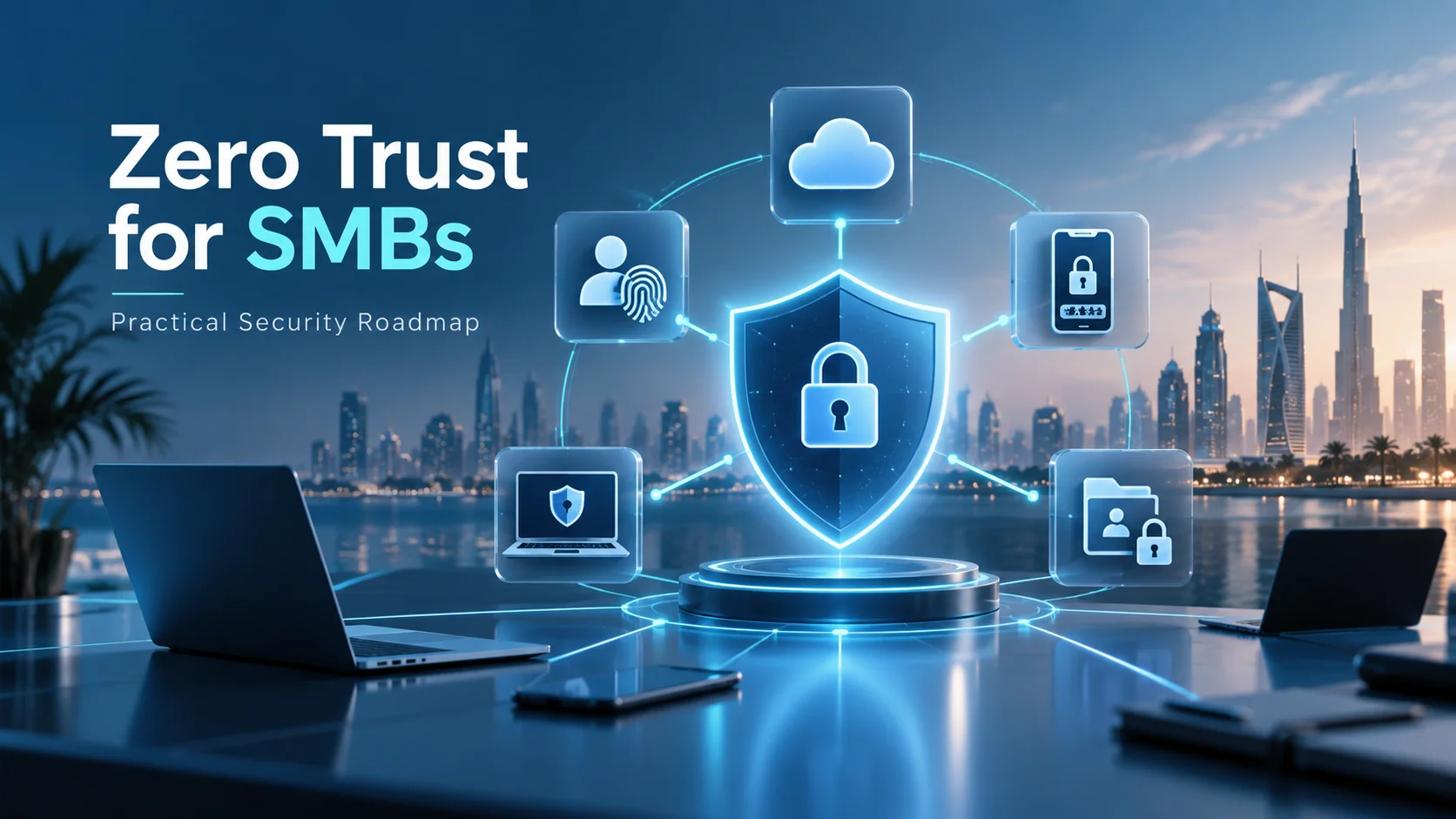
Zero trust works best when you think of security as a series of connected layers, rather than just relying on a single piece of software.
The first layer starts with identity.
Basically, everyone from your full-time team to outside contractors needs their own specific login. When people share passwords, it’s impossible to know who’s doing what, which makes things risky. It’s best to have a simple process for setting up accounts and making sure they’re closed down as soon as someone moves on.
The second layer is all about the device.
Even a trusted employee might accidentally use a laptop that’s out of date or infected with something nasty. Before letting a device into your sensitive systems, you want to be sure it’s approved, fully updated and properly protected.
The third layer covers your applications.
Not every employee needs access to every business system. Sales teams may need the CRM, while finance staff require accounting tools. IT administrators may need elevated access, but only for systems they manage.
The final layer is the data itself.
You wouldn’t protect a public flyer the same way you’d protect your payroll files. It’s important to know exactly where your sensitive info lives, who can see it and if they still really need that access.
By using these layers, you’re making sure the whole company’s security doesn’t fall apart just because of one small mistake.
Think of it this way: a password might be right, but the system could still ask for extra proof if the laptop looks unfamiliar. Or a user might be verified, but they’ll still be blocked from a sensitive financial report if it’s not part of their role.
The Securify Identity IAM platform brings identity management, multi-factor authentication, lifecycle management, single sign-on, adaptive access control and identity intelligence into one environment. This can help growing companies manage access more consistently as users and applications increase.
A useful first exercise is to create a simple map showing:
Users: your team, admins, contractors and partners
Devices: the laptops, phones and servers everyone uses
Applications: email, finance tools, CRM and cloud storage
Data: customer info, contracts, payroll and your backups
Once you can see these layers clearly, it becomes much easier to spot where you might have too much access or where a few extra controls are needed.
Endpoint Protection as the First Control Point
While securing identities is a huge part of the puzzle, the truth is that most attacks actually start right on an employee’s device.
Think about how easily it happens: someone clicks a link in a fishy email, opens a shady attachment or plugs in a random USB drive. From there, ransomware can start locking up files and trying to crawl into your company’s shared folders before anyone even notices.
That’s exactly why endpoint protection, basically, keeping a close eye on laptops and phones is such a smart, practical first step for any small business moving toward zero trust.
Instead of assuming a laptop is safe just because it belongs to the company, you treat every device as a potential doorway that needs to be checked. It’s not about being suspicious of your team; it’s about making sure their gear meets a basic safety standard before it’s allowed into the system.
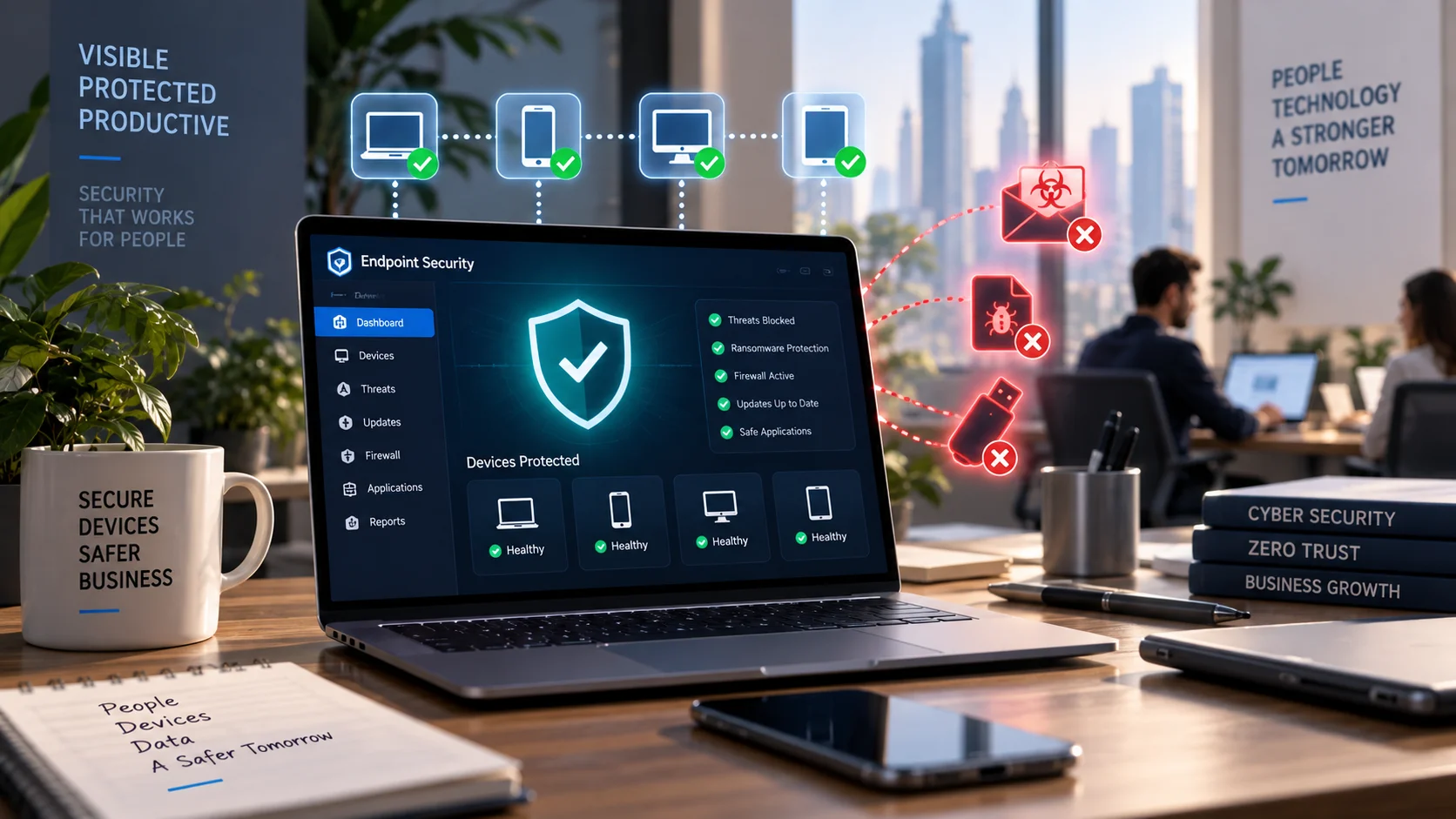
At minimum, the business should know:
- Which devices are connected
- Who owns or uses each device
- Whether operating systems are supported
- Whether security updates are installed
- Whether endpoint protection is active
- Which applications and external devices are allowed
- Whether unusual behavior is being detected
The NIST Small Business Quick-Start Guide keeps it simple: keep a list of your hardware and software, change those generic default passwords, stay on top of updates, and make sure your most important accounts have MFA turned on.
If you don’t have a massive IT department, you need a way to manage all of this from one spot. You shouldn’t have to manually check every single laptop just to see if the antivirus is running or if an update got stuck.
K7 On-Premises Endpoint Security makes this easy by putting everything from ransomware blocks to firewall settings into one central dashboard, helping smaller teams stay protected without needing a huge internal security operation.
The key is to make sure security doesn’t get in the way of getting work done. If you block everything without thinking about how people actually work, your team will eventually start looking for ways to bypass the rules just to do their jobs.
The better approach is to create sensible policies. Approved applications should work normally. Risky software should be restricted. USB access may be allowed for specific teams while blocked for others. Higher-risk users and systems should receive stronger controls.
MFA, Least Privilege and Access Reviews
When you’re starting out with zero trust, there are three main tools that are actually quite easy to get your head around: multi-factor authentication, least privilege and regular access reviews.
Multi-factor authentication, or MFA, adds another proof of identity beyond the password. Even when a password is stolen, the attacker still needs the additional factor before access is granted.
MFA should begin with the accounts that create the greatest risk:
- Email and cloud productivity accounts
- Administrator accounts
- Finance and banking platforms
- Remote-access services
- Cloud storage
- Payroll and HR applications
- Customer and business management systems
Keep in mind that not all MFA is created equal. Whenever you can, it’s a good idea to move toward “phishing-resistant” methods. CISA suggests these stronger options and points to number-matching as a great middle ground if you’re currently using simple push notifications.
The second tool is called least privilege.
The idea here is that employees should only have the specific access they need to do their jobs not a blanket “just in case” pass to everything. You want to keep admin rights limited and avoid using high-level accounts for everyday tasks.
For example, someone in marketing should be able to post content without needing the keys to manage user accounts. Similarly, if a consultant is helping out for a few weeks, they should only see that specific project, not the whole company drive forever.
The third tool is the access review.
It’s easy for permissions to pile up over time without anyone noticing. Maybe someone switched teams but kept their old access or a contractor finished their job but still has a login. Sometimes a manager gets temporary admin rights for a quick task and then they’re never removed.
Checking these every three months is a very achievable goal for most smaller businesses, though you might want to look at your most sensitive systems even more often.
Securify Identity’s approach to zero trust brings MFA together with smart rules and constant monitoring. This helps your business make access decisions based on the actual situation, rather than just crossing your fingers and hoping a password is enough.
How to Start Without Overcomplicating IT
If you try to tackle zero trust as one massive, overwhelming project, you’re setting yourself up to fail.
A growing business doesn’t need to buy every security gadget on the market to get started. Instead, just focus on the areas that pose the biggest risks to your day-to-day operations.
Start by getting a clear picture of what you have.
Create a simple list of your users, devices, apps and sensitive information. It doesn’t have to be perfect right from the start, you just need a solid answer to the question: what are we actually trying to protect?
Next, figure out which systems are the most critical. Things like your email, finance apps, customer data, remote access points and admin accounts are usually the best places to start.
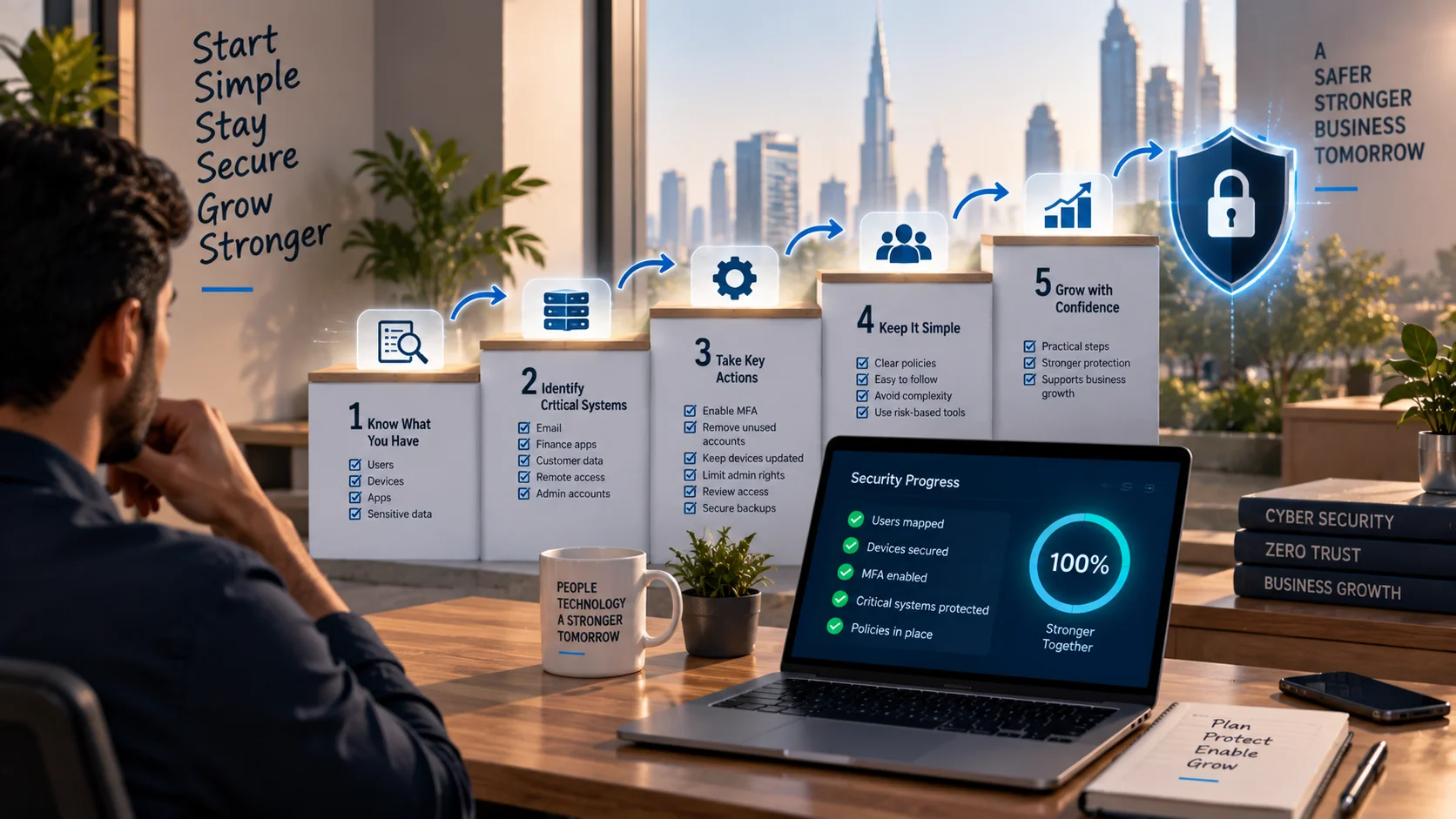
From there, take a few high-impact steps:
Turn on MFA for your most important accounts. Get rid of accounts that aren’t being used anymore. Keep your devices updated and secure. Limit who has admin rights, review who can see shared folders and make sure your backups are solid and safe from accidental changes by standard users.
The CISA small-business cybersecurity guidance suggests focusing on practical, achievable wins like using strong passwords, teaching employees to spot phishing and keeping software updated rather than stressing about building a flawless security program overnight.
When it comes to policies, keep it simple so your team can actually understand them. A one-page guide that clearly explains how to request or remove access is infinitely more useful than a 40-page manual that no one is going to read.
Also, be careful not to make security a headache for your employees. If logging in becomes a daily struggle with too many manual steps, people will get frustrated and might even try to bypass the rules just to get their work done. Instead, use smart, risk-based tools that only step in to verify identity when things look a bit unusual, leaving normal workflows alone.
D3 helps businesses across the GCC bring these security layers together into a practical and manageable setup. As a K7 Distributor, D3 provides access to endpoint security solutions that improve device visibility and threat protection, while its role as a Securify Identity Distributor helps organizations strengthen MFA, identity management and access control.
The objective is not to make IT more complicated. It is to remove the gaps that appear when a business grows faster than its security processes.
90-Day Zero Trust Checklist
A practical zero-trust programmed can begin within 90 days when you break the work down into manageable steps.
Days 1–30: Understand the environment
- Create an inventory of employees, contractors and administrator accounts.
- List company laptops, desktops, servers and mobile devices.
- Identify important applications and cloud platforms.
- Locate sensitive customer, financial, employee and operational data.
- Remove inactive accounts and unsupported devices.
- Confirm endpoint protection and software updates are active.
- Identify accounts that still depend only on passwords.
Days 31–60: Strengthen the main controls
Now, let’s lock things down. Turn on multi-factor authentication (MFA) for your most critical accounts, like email, admin logins and finance platforms.
Make sure admin accounts are separate from your daily user accounts. Start applying the “least privilege” rule essentially, only give people access to the files and apps they genuinely need.
Get your endpoint policies centralized, decide which apps and devices are off-limits and make sure you have a solid process for onboarding and offboarding team members. Also, confirm your backups are secure and most importantly actually test that you can restore them.
Days 61–90: Review, test and improve
- Conduct the first access review with department managers.
- Remove permissions that are no longer required.
- Test the response to a stolen account or infected device.
- Review endpoint alerts and failed login activity.
- Train employees to report suspicious messages and login requests.
- Define who owns identity, endpoint and access decisions.
- Record the next review date and assign responsibility.
After 90 days, the company will not have completed zero trust—and it should not expect to. Zero trust is an operating model that develops as the organization, workforce and technology environment change.
What the business should have is something more valuable than a finished project: visibility, stronger identities, healthier endpoints and a repeatable process for deciding who should access what.
For SMBs across the GCC, that is the real value of zero trust. It allows security to grow with the business without forcing the organization to behave like a global enterprise on day one.
Start with the accounts that matter most. Protect the devices employees use every day. Remove access nobody can justify. Then improve one layer at a time.
That is how zero trust becomes practical not as a slogan, but as a safer way for a growing company to operate.