A standard file server handling steady daily traffic has completely different needs than a busy database churning through thousands of transactions. And a massive long-term archive comes with its own unique set of risks.
As drive sizes keep growing, this decision becomes even more critical. Losing a drive is stressful enough, but what happens while the system is trying to rebuild can be just as risky.
For businesses and channel partners across the GCC building around Seagate enterprise technology, the real question isn’t “Which RAID number sounds highest?”
Instead, ask yourself:
How much capacity, performance and failure protection does this workload actually need?
How the Three RAID Levels Work
While all three RAID setups use multiple drives, they each go about protecting your data in pretty different ways.
RAID 5 works by spreading your data along with distributed parity across all the drives in the array. If one drive happens to fail, you don’t lose everything; the system can rebuild the missing info using the data and parity that survived.
As pointed out in Seagate’s RAID guidance, RAID 5 will keep running fine after a single drive dies. But if a second drive goes down before that first one is fully rebuilt, the whole array is gone.
RAID 6 follows that same basic setup, but it adds a second layer of distributed parity. That extra safety net means your array can handle up to two drive failures without losing data. The catch? The system works harder calculating parity and you lose a bit more usable capacity.
And then we have RAID 10.
RAID 10 (sometimes written RAID 1+0 ) doesn’t depend on parity. It creates mirrored pairs of drives and then stripes data across those pairs. You effectively combine RAID 1’s mirroring with RAID 0’s performance characteristics.
That brings us to a clear, side-by-side view of how they compare:
| RAID 5 | RAID 6 | RAID 10 | |
| Method | Striping + single parity | Striping + dual parity | Striping across mirrored pairs |
| Minimum drives | 3* | 4* | 4 |
| Guaranteed fault tolerance | 1 drive | 2 drives | 1 drive per mirror pair, subject to which drives fail |
| Usable capacity | High | Moderate-high | 50% |
| Read performance | Strong | Strong | Strong |
| Write performance | Parity overhead | Greater parity overhead | Strong |
| Rebuild characteristic | Parity reconstruction | Parity reconstruction | Mirror copy |
| Good fit | Capacity-focused general workloads | Larger arrays where resilience matters | High-I/O workloads |
*Keep in mind that minimum drive requirements can depend on how your system is set up. For instance, some hardware supported by Seagate RAID Manager asks for higher drive counts even though RAID 5 and RAID 6 can theoretically run on three and four drives, respectively.
Already, you can see the problem with asking which one is “best.” They aren’t solving the problem in quite the same way.
Usable Capacity with the Same Drive Count
Let’s put this into perspective with a real-world example.
Imagine you have six identical 20 TB drives. On paper, that adds up to 120 TB of raw storage. But how much of that your system can actually use depends entirely on the RAID level you choose.
With RAID 5, you give up the equivalent capacity of one drive to handle parity:
(6 − 1) × 20 TB = 100 TB usable
With RAID 6, dual parity takes away the capacity of two full drives:
(6 − 2) × 20 TB = 80 TB usable
And with RAID 10, you lose half of your total raw capacity right off the bat to mirrored copies:
6 × 20 TB ÷ 2 = 60 TB usable
Keep in mind, these are simplified baseline numbers before formatting and system overhead take their cut.
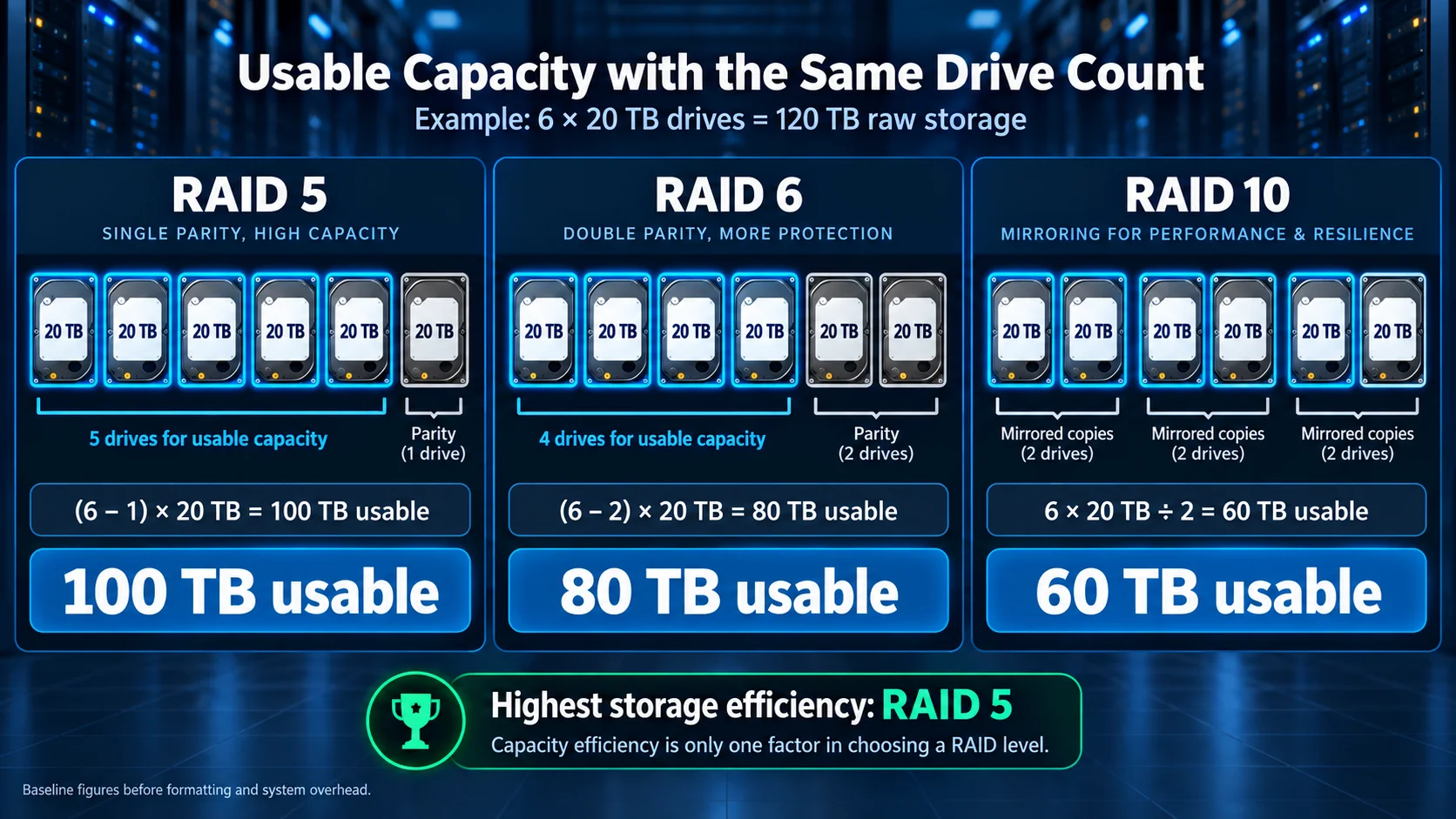
If you’re looking purely at storage efficiency, RAID 5 easily comes out on top. After all, getting 100 TB of space instead of 60 TB is a massive difference.
That’s why RAID 5 is still such a popular choice when teams need redundancy without burning through extra storage. Seagate’s RAID calculator points this out as well, highlighting RAID 5 as the go-to option when keeping costs down and maximizing space matter more than top-tier performance. But capacity efficiency is only one column on the spreadsheet. The other columns are where the decision gets interesting.
Drive Failures and Rebuild Risk
Imagine one of your drives suddenly dies. What happens next?
If you’re running RAID 5, your array enters a degraded state, though it keeps plugging away. To recover, the system reconstructs the missing data onto a brand-new drive using parity information pulled from the remaining healthy disks.
During that period, you no longer have the same protection you had before the failure. If another drive fails before RAID 5 completes its rebuild, the array cannot tolerate it. Seagate explicitly notes this second-drive-failure risk in its RAID documentation. RAID 6 gives you more breathing room.
Thanks to its dual-parity architecture, RAID 6 can take two drive failures on the chin without losing data. That extra cushion makes a world of difference in large capacity setups where rebuilds are lengthy operations rather than quick fixes. Just keep in mind, as Seagate notes, calculating all that extra parity means RAID 6 rebuilds can take noticeably longer than RAID 5.
RAID 10 handles drive failures in a completely different way. When a drive drops out, its mirrored partner already holds a direct copy of your data. In fact, RAID 10 can handle multiple drive failures as long as they happen in separate mirror pairs. But if both drives in the exact same pair go down, the whole array fails.
That’s an important distinction to keep in mind. Simply saying “RAID 10 can survive two drive failures” leaves out the crucial detail of which two drives actually fail.
The actual layout of your array matters a lot. And so does the rebuild period. Seagate points out that initialization and rebuilds place heavy demands on both system performance and data safety, which is why your RAID strategy needs to account for how things run on degraded drives, not just on a good day. In everyday operations, that’s what separates a RAID choice that merely looks good on paper from one that actually works when disaster strikes.
Read and Write Performance
RAID performance discussions can become messy quickly because real world results depend on the controller, drive type, number of drives, workload, stripe configuration, cache, interfaces and whether the traffic is sequential or random.
Even so, the underlying architectures have some clear structural differences. RAID 5 usually delivers great read speeds since data is striped across multiple drives. Writes take a hit, though, because the system has to calculate and write parity data every single time. RAID 6 slows writes down even further since it has to maintain two separate parity sets.
Seagate’s performance benchmarks generally give RAID 5 and RAID 6 high marks for reading but lower scores for writing. RAID 10, on the other hand, gives you solid reads alongside much better write speeds than parity setups can manage.
That doesn’t mean RAID 6 is “slow.” It means every design has a cost.
RAID 6 burns extra system resources to give you stronger protection against double-drive failures. RAID 10 burns half your raw disk space to give you simple mirroring and fast I/O. At the end of the day, your specific workload determines which trade-off is easier to live with. There’s another catch that often gets overlooked: degraded performance.
When a RAID 5 array loses a disk, it has to rebuild missing data on the fly from parity while simultaneously trying to handle normal read and write requests and rebuilding onto a replacement drive. Seagate points out that read and write speeds can take a massive nose-dive during this degraded state.
That’s why testing speed on a perfectly healthy array only tells half the story. For critical setups, you need to know how the array holds up on its absolute worst day.
Choosing RAID by Workload
Rather than picking a RAID level just because it feels familiar, try matching it to the actual work your storage will be doing day in and day out.
File Servers and Shared Storage
If you’re running general file servers, shared team storage, or systems where people read data far more often than they write it, RAID 5 is usually a solid sweet spot. You gain single-drive fault tolerance without sacrificing half of your raw capacity.
That balance makes plenty of sense when:
- maximizing usable space is your main goal;
- your system isn’t constantly hammered with heavy write tasks;
- you’re not working with a massive array of huge drives;
- you already have reliable, solid backups in place and
- your workflow can handle a temporary slowdown while a replacement drive rebuilds.
On the flip side, RAID 6 makes a lot more sense as data safety becomes your top priority.
When you’re managing a large pool of drives or holding critical company data, you really don’t want to be one unlucky failure away from total data loss during a long rebuild. In those cases, giving up one more drive’s worth of space is a trade-off most admins are happy to make.
For high density storage setups, keeping things running smoothly takes more than just standard RAID configurations. High-capacity solutions like Seagate Exos CORVAULT rely on Seagate’s ADAPT protection technology and Autonomous Drive Regeneration to handle disk rebuilds and uptime effortlessly at scale. The RAID level is one layer. The platform around it matters too.
Write-Heavy Applications
When your applications are constantly writing data, RAID 10 quickly becomes the standout choice.
It’s ideal for active databases, transactional systems, busy virtual machines or workloads that constantly read and write thousands of small files. Because RAID 10 mirrors data instead of calculating distributed parity, it completely skips the write performance penalty that comes with RAID 5 and RAID 6.
Seagate specifically highlights RAID 10 as a top recommendation for heavy database environments, pointing to its high IOPS capabilities and reliable data protection.
You lose exactly half of your total raw storage to redundancy.
For instance, eight 20 TB drives give you 160 TB of raw space, but RAID 10 cuts that down to around 80 TB of actual usable capacity. That might sound like a steep price to pay, until you’re running business-critical applications where high latency directly impacts your bottom line.
At that point, the math changes completely. When speed is essential, buying extra drives is usually much cheaper than letting storage bottlenecks slow down your entire application.
Why RAID Still Needs Backup
If you take away just one thing from this guide, let it be this:
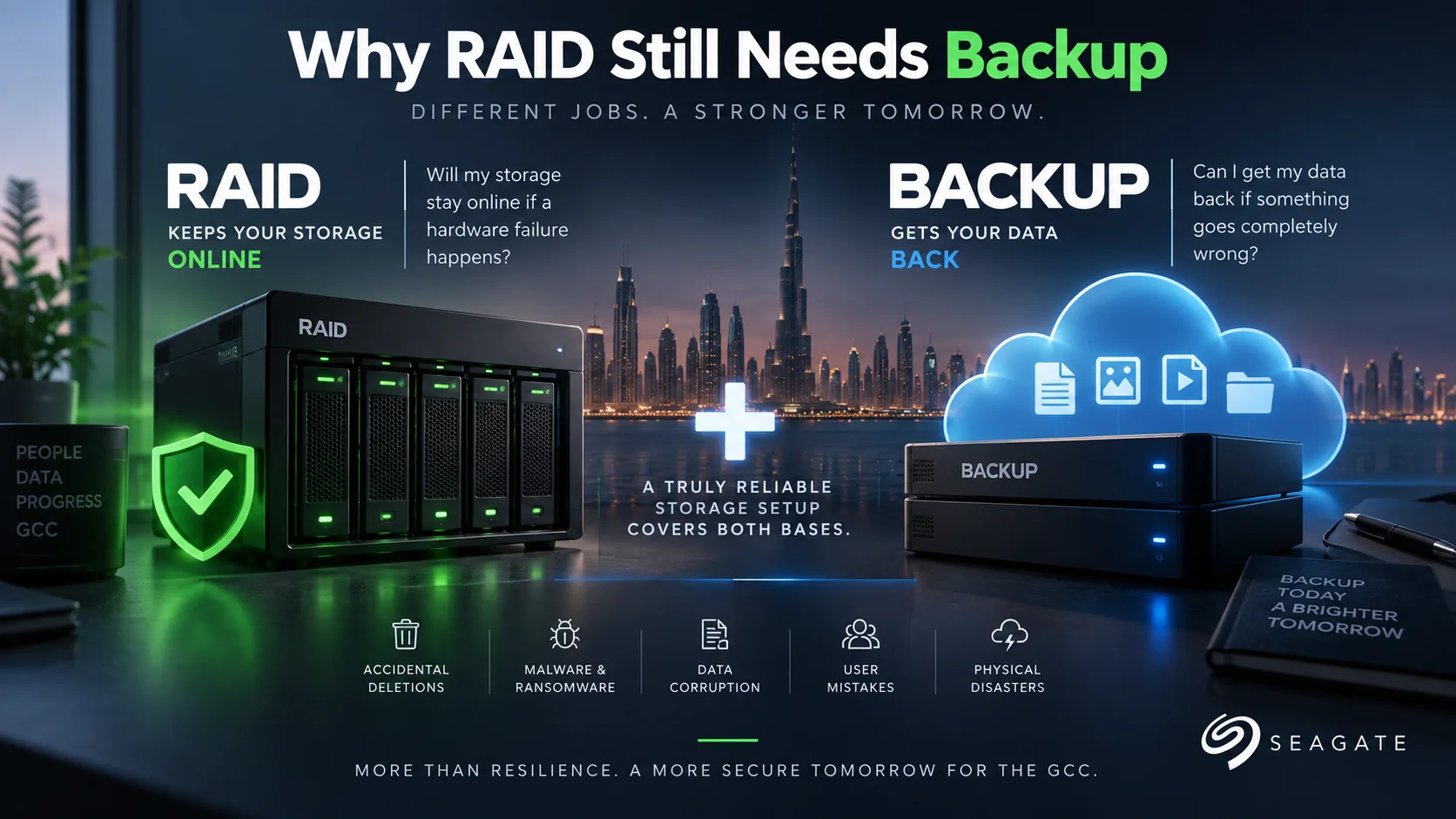
RAID is not a backup system. It’s super easy to confuse redundancy with having a solid backup, but they actually do two totally different jobs. RAID keeps your systems up and running seamlessly whenever a physical drive dies. What it can’t do is protect your files from all the other ways data gets wiped out.
If someone accidentally deletes a critical folder, RAID will instantly duplicate that deletion right across the array. The same goes for data corruption, malware, ransomware, user mistakes or physical disasters, redundancy won’t magically roll your files back to a healthy state. For those situations, you need a dedicated backup strategy.
That’s exactly why Seagate recommends backing up all your important files before making any updates or adjustments to your array.
A useful way to think about it is:
RAID asks: “Will my storage stay online if a hardware failure happens?”
Backup asks: “Can I get my data back if something goes completely wrong?”
They serve completely different purposes.
A truly reliable storage setup must cover both bases.
For businesses managing rapidly growing data across the GCC, that means pairing resilient primary storage arrays with a robust recovery architecture, rather than expecting your RAID array to handle all the heavy lifting alone.
Checks Before Creating an Array
Before you jump into choosing RAID 5, RAID 6, or RAID 10, don’t just open your storage interface and click the first option in the dropdown.
Start by looking at the actual workload first.
Here are the key questions D3 recommends bringing to the table right away:
- How much usable capacity do you actually need?
Calculate after RAID overhead, not from the raw capacity printed on the drives. - What is the workload doing all day?
Sequential reads, random writes, database transactions, surveillance streams and archival workloads create very different storage demands. - How expensive is downtime?
“We’d rather avoid it” isn’t enough. Understand what an hour of degraded or unavailable storage means to the business. - How much fault tolerance is required?
One-drive protection may be appropriate in one environment and unacceptable in another. - How long could a rebuild take?
Consider drive capacity, controller behavior and the production workload while the rebuild is taking place. - What performance is required during degradation?
Don’t size infrastructure only for the healthy state. - How quickly will the environment grow?
Today’s six-drive array can become tomorrow’s migration problem if growth wasn’t considered at design time. - Is there a hot spare strategy?
Seagate notes that a spare can automatically replace a failed drive and reduce the amount of time an array remains degraded, although the spare contributes neither usable capacity nor normal-operation performance while reserved. - Where is the backup?
If the answer is “the RAID,” stop there and redesign the protection strategy. - Are the drives and storage platform designed for the workload?
RAID cannot compensate for selecting the wrong underlying hardware.
That last point warrants a lot more attention than it usually gets.
Your RAID config is just one piece of the bigger storage puzzle. Everything from drive specs and workload ratings to interfaces, controllers, enclosures, cooling, and overall architecture shapes how your finished system actually performs.
This is precisely where D3 brings far more to the table than simply shipping hardware from a warehouse to a job site.
As a leading Seagate distributor across the GCC and MENA, D3 helps channel partners and businesses tackle the entire storage strategy: evaluating workloads, target capacity, performance requirements, resilience, future growth, and selecting the right enterprise technology to support it all.
So, should you choose RAID 5, RAID 6, or RAID 10?
If your priority is stretching usable space as far as possible while keeping single-drive protection, RAID 5 is a solid option.
If you need stronger protection against multiple drive failures and can accept lower usable capacity alongside higher parity overhead, RAID 6 is well worth considering.
If raw speed, write-heavy I/O, and low latency matter far more than squeezing out every last terabyte, RAID 10 is usually the best choice.
Just remember: don’t start by picking a RAID level. Start with your workload first, then build your storage around it. That simple shift in perspective can save you from a very costly redesign down the road.