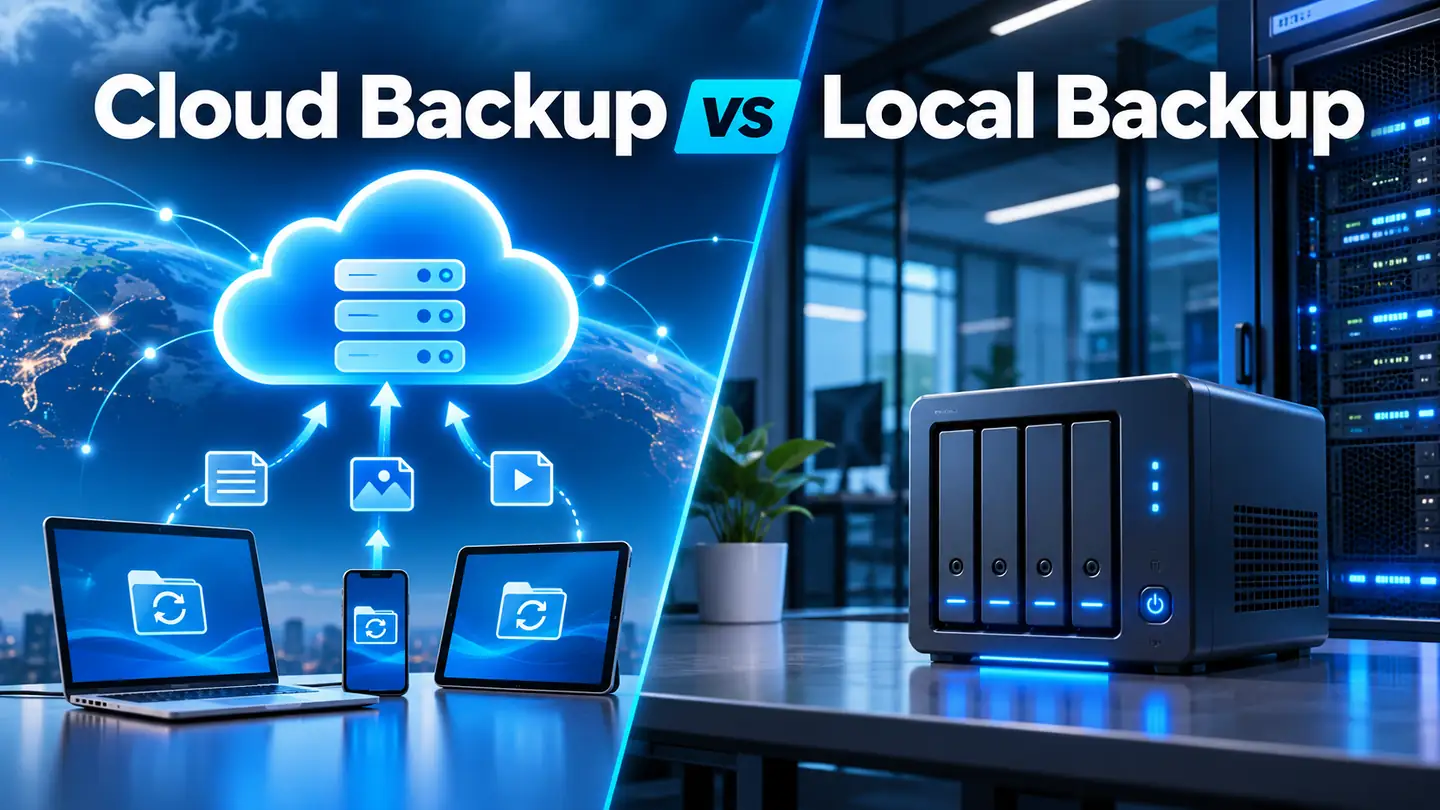
Choosing a backup strategy used to be pretty straightforward. You just saved a copy of your important files somewhere else and that was that.
Honestly, though, that simple approach just doesn’t cut it anymore.
These days, company data is scattered everywhere on laptops, cloud apps, office servers and remote devices. Some of that data needs to be restored instantly if something goes wrong, while other files just need a safe offsite backup in case the whole office goes dark. Plus, remote team members might rarely even connect to the office network. Throw in growing worries about ransomware, compliance rules, data privacy and skyrocketing cloud bills and things get complicated fast.
That’s why deciding between Cloud Backup vs Local Backup isn’t as simple as saying:
“Cloud is modern, local is outdated.”
The truth is, both options tackle completely different recovery challenges.
A local backup can get your systems back up and running super fast because the hardware is sitting right next to your servers. On the flip side, a cloud backup keeps a copy offsite, so your data stays safe even if your main location suffers from hardware failure, theft or a physical disaster.
For most companies, the smartest move is actually a hybrid backup plan that blends the best of both worlds. In a Cloud Backup vs Local Backup decision, finding the right fit really comes down to the kind of data you’re protecting, how fast you need it back, where your team is working, your internet speeds,and your plan for a worst-case site outage. For businesses across Dubai and the wider GCC, that discussion is increasingly important as work becomes distributed and critical data no longer lives only inside the office.
What Cloud and Local Backup Mean
Simply put, local backup means keeping your recovery data on-site within your own setup.
That might mean:
- A dedicated backup appliance
- Local NAS
- Secondary storage array
- External storage
- Tape infrastructure
- Another server within the same facility
The real win here is having everything right next to you. Since the backup sits right alongside your main systems, you don’t even need an active internet connection to start restoring files. That makes on-premises backups ideal when getting big servers or database systems back online as fast as possible is your main priority.
However, being so close comes with a major downside.If ransomware hits your system, it can easily reach and scramble any backup connected to that same network. Worse yet, if a fire, flood or break-in damages the building, you could lose both your live data and your backups in one go.
On the flip side, cloud backup stores your data safely off-site on external servers. As CrashPlan points out, endpoint backup simply means keeping a separate copy of your device’s critical data either on local drives or up in the cloud so you can quickly recover if a laptop dies or files get lost.
With a cloud setup, a lightweight app running on your system continuously pushes fresh data over the internet to secure cloud storage. For instance, CrashPlan’s enterprise solution handles continuous incremental backups behind the scenes, letting companies store data directly in CrashPlan’s cloud or connect their own cloud destinations like AWS or Azure.
In Cloud Backup vs Local Backup discussions, “cloud” and “local” simply tell you where your recovery copies live.
They don’t automatically guarantee whether your backups are secure, lightning-fast, immune to attack or set up correctly. All of those details come down to how well you design your overall backup strategy.
Recovery Speed and Bandwidth Trade-Offs
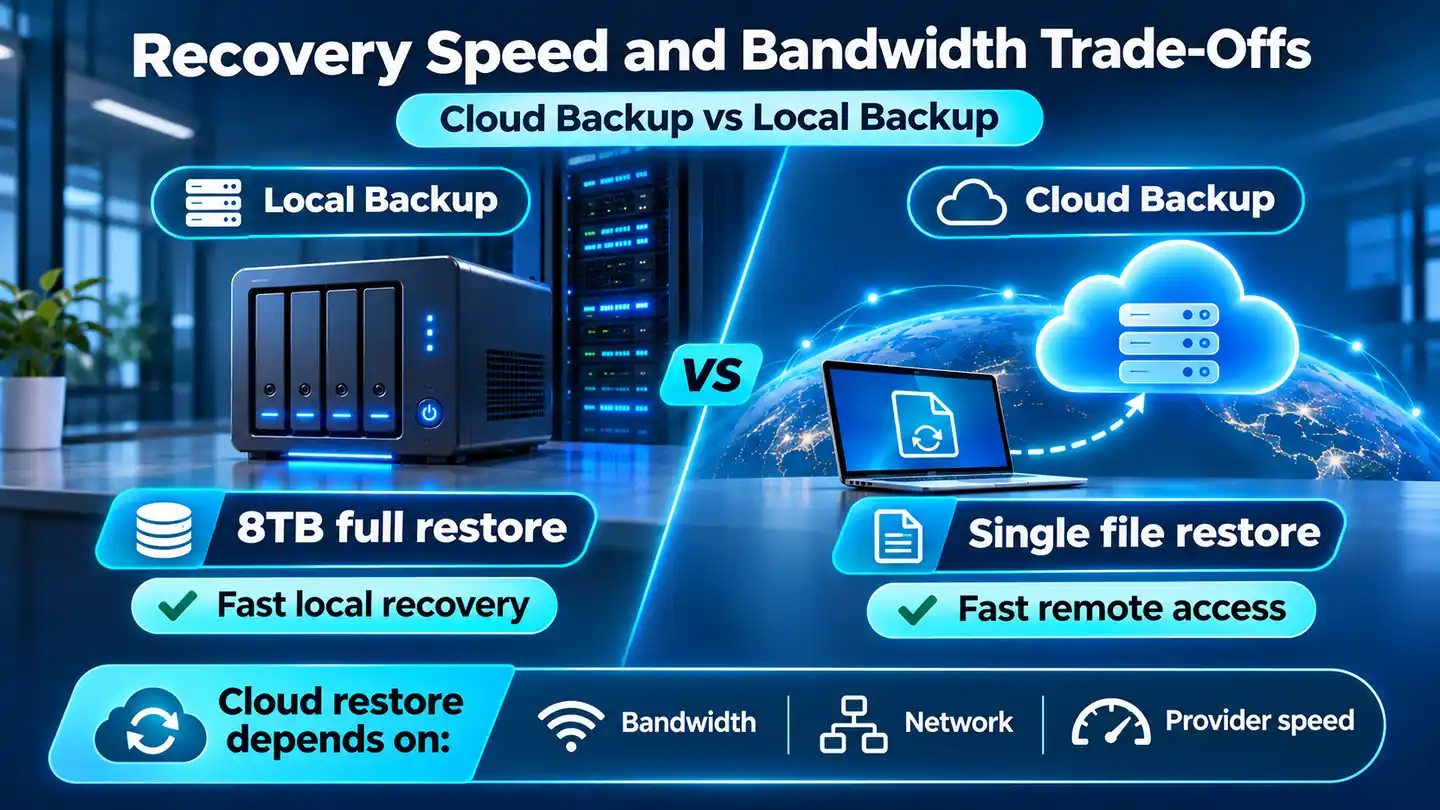
If you need to get systems back online quickly, Cloud Backup vs Local Backup comparisons show why keeping at least some of your backups stored locally is hard to beat. Let’s say you have a file server with 8TB of critical company data on it.
If a local backup appliance can deliver the data over a high-speed internal network, restoration may begin immediately and use the full capacity of the LAN.
Restoring the same 8TB from the cloud depends heavily on:
- Internet bandwidth
- Provider-side throughput
- Encryption/decryption processing
- Number of files
- Endpoint speed
- Network congestion
- Cloud restore method
This is exactly why local restores tend to win when dealing with massive data sets. However, if you only need to grab a single missing file, things look completely different. When an employee accidentally deletes a slide deck, downloading that single file from the cloud takes just a few seconds without bothering the IT team or local server hardware.
Tools like CrashPlan support granular restores, letting users or IT admins grab specific files or folders on demand instead of forcing a full system recovery. It even supports file stubbing, so you can access prioritized files right away while the rest finish downloading in the background. Ultimately, it boils down to two distinct scenarios.
Scenario A:
A team member accidentally deletes a file. Recovering directly from the cloud is quick and effortless.
Scenario B:
A main production server holding terabytes of data crashes completely. A local backup will get you back up and running much faster. It’s also worth noting how internet speed impacts your initial backups.
Cloud backups mean pushing all that data off-premises.
The very first full backup of multiple terabytes can take quite a while over a standard connection. Once that baseline is set, ongoing incremental backups run smoothly because you’re only transferring whatever changed.
CrashPlan takes advantage of incremental backups and block-level deduplication, ensuring routine updates only sync edited data instead of resending huge files over and over.
That’s why a Cloud Backup vs Local Backup evaluation accounts for both backup speed and restore speed. Even if a cloud solution takes a few days for the initial seed backup, it can work seamlessly once daily incremental syncs take over.
Cost, Egress and Long-Term Retention
When it comes to costs, Cloud Backup vs Local Backup options couldn’t be more different.Going local means paying a pretty hefty sum right upfront. You’ll need to budget for things like:
- Backup storage
- Server hardware
- Software licences
- Racks
- Power
- Cooling
- Maintenance
- Replacement drives
- Additional capacity
On the plus side, your company owns all the hardware outright and has complete control over it. Cloud backup shifts things over to an ongoing operational expense. Instead of buying everything upfront, you pay as you go for the service, storage and data usage. That flexibility makes scaling up a whole lot easier. Still, you’ll want to read the fine print on cloud pricing carefully.
Storage is only one component. Some cloud providers charge extra fees whenever you pull data back out of their platforms. Take Amazon S3, for example: once you pass their basic free tier, they charge for data transfers, which shows why you need to factor in egress costs if you ever have to restore massive amounts of data. That doesn’t mean restoring from the cloud is always going to break the bank, though.
It really depends on how the provider structures their plans. Certain backup services roll recovery traffic right into your regular subscription. Others let you bring your own cloud storage, meaning standard provider transfer rates apply. So before signing anything, your procurement team should ask two simple questions:
What does a typical month cost us?
and
What does a full-blown disaster recovery month cost us?
The answers might surprise you with completely different figures. Long-term data retention is another huge piece of the puzzle. Hanging onto years of local backups takes up a ton of physical drive space.
Cloud object storage may make that expansion easier, especially for data that rarely needs to be accessed. But retention needs a policy. Do not retain everything indefinitely simply because storage can scale.
CrashPlan allows administrators to control backup intervals, versioning, retention and version-aging policies according to business requirements. The right Cloud Backup vs Local Backup model balances recovery needs with storage cost, regulatory requirements and the real value of older versions.
Security, Access and Copy Isolation
In Cloud Backup vs Local Backup planning, a backup is only good if it actually survives whatever wiped out your main system. That’s why copy isolation is so crucial. If an attacker breaks into your system and can erase every single backup from the same account, sure, you technically had backups but they weren’t much help when you needed them.
CISA strongly advises keeping protected backup copies off limits, warning that modern ransomware actively hunts down and destroys accessible backups. Their ransomware guidelines recommend regularly testing encrypted backups and keeping offline or isolated copies wherever possible.
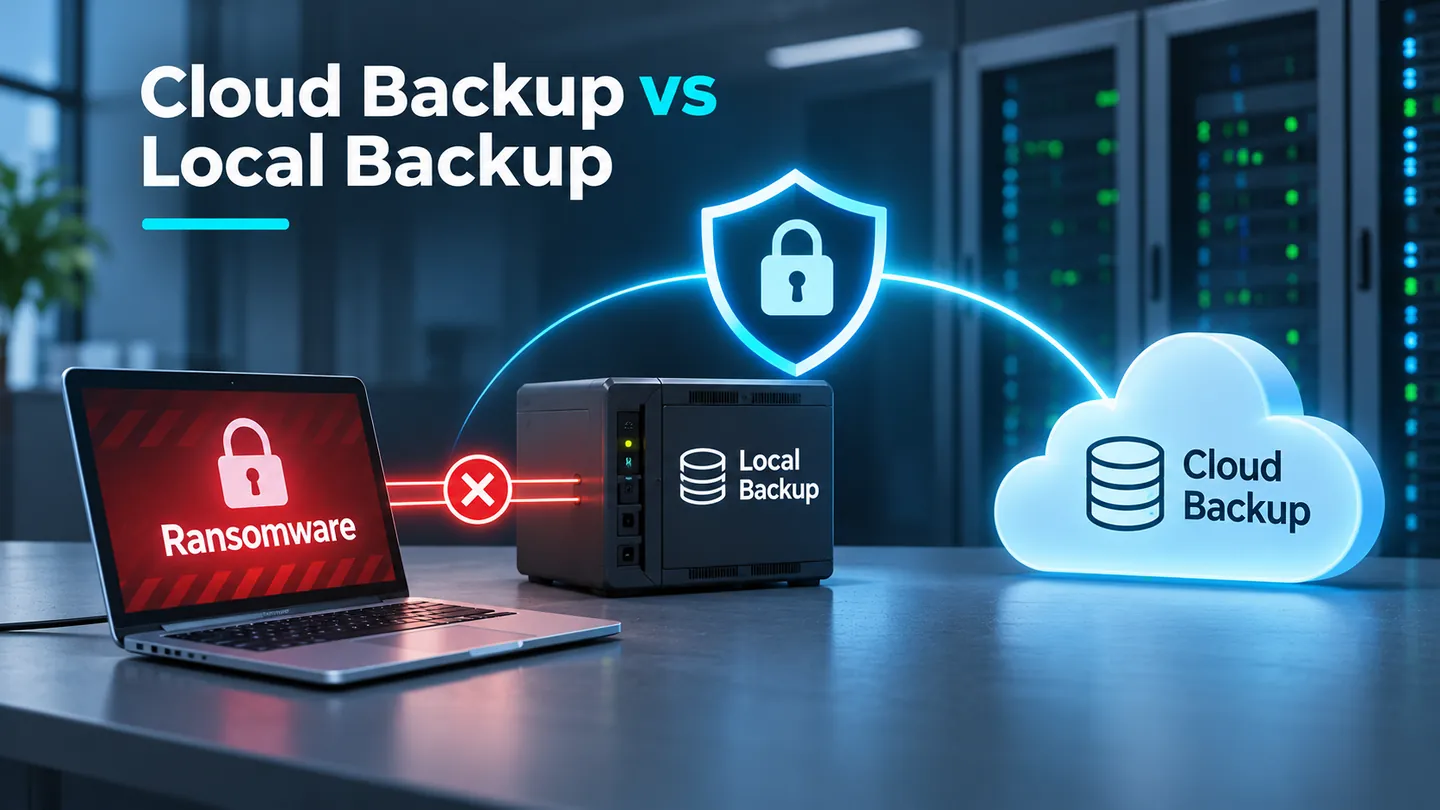
Storing backups in the cloud creates a healthy gap between your recovery files and local infrastructure. However, simply moving data to the cloud doesn’t mean it’s magically isolated. Security teams still need to double-check key safeguards, including:
- Administrator access
- MFA
- Role separation
- Encryption
- Backup deletion controls
- Immutability
- Retention policies
- Audit logging
- Encryption-key ownership
CrashPlan’s current enterprise endpoint offering includes AES-256 encryption at rest, TLS for data in transit, customer-controlled encryption keys and immutable backup copies. Local backups can be isolated effectively, too. A few proven options include:
- Offline tape
- Immutable object storage
- Hardened backup appliances
- Restricted management networks
The takeaway here isn’t cloud vs. local. The real question is:
If an incident hits production, could it destroy our recovery copies, too?
If the answer is yes, your backup design needs another layer of protection.
Hybrid Backup Use Cases
That’s exactly why hybrid backup is still such a popular choice in Cloud Backup vs Local Backup discussions. Instead of putting all your eggs in one basket, a hybrid approach keeps multiple copies of your data across different environments. Here is a quick look at how that breaks down:
Local copy
for super-fast, everyday restores.
Cloud or offsite copy
to protect you when disaster strikes the building.
These two copies are built to tackle totally different problems. Say a ransomware attack scrambles a handful of user files. You can quickly grab clean versions right from your local backup without missing a beat. Now, imagine a worst-case scenario like a server room fire. Your local backup hardware might be completely destroyed. That’s the moment your offsite cloud copy saves the day.
This setup forms the foundation of the classic 3-2-1 backup strategy:
- Keep three overall copies of your data
- Store them across two different types of media
- Save at least one copy safely offsite
Many modern setups even take this a step further by ensuring at least one copy is fully offline or immutable.
NIST’s contingency planning advice follows a similar path, framing backup as part of a complete recovery plan and highlighting that critical files often need offsite storage based on your business needs. A hybrid plan also lets you tailor protection for different kinds of workloads. Laptops used by remote team members can back up directly to cloud storage.
Meanwhile, heavy-duty local servers can rely on an on-site target for quick restores alongside a secondary offsite copy. Cloud-native apps can simply be backed up directly cloud-to-cloud.There’s no need to force every single device into a one-size-fits-all model.
Remote Staff vs On-Premises Servers
The shift to remote work has completely reshaped how we think about backups. Traditional local backups rely on everyone connecting directly to the office network on a regular basis. That system worked seamlessly back when everyone sat in the same building every day.
Today, though, it quickly falls apart when team members work from home, travel constantly or rarely step foot inside the office LAN. In Cloud Backup vs Local Backup planning, that’s where cloud-based endpoint backups come in, protecting devices anywhere they can find an internet connection.
For example, CrashPlan runs quietly in the background on Windows, macOS and Linux devices while giving IT central oversight of status and recoveries. This is particularly useful for:
- Remote employees
- Executives
- Field teams
- Hybrid workers
- Travelling staff
Now, team members don’t need to physically bring their laptops back to the office just to keep their data safe. On-premises servers, on the other hand, are a different story.
When a massive file server or core database goes down, you need to restore vast amounts of data much faster than a standard laptop recovery requires. In those situations, having a local backup target right on-site is invaluable. From there, you can still replicate a secondary copy off-site to handle full-blown disaster scenarios. This is why businesses should avoid choosing one backup model simply because it is administratively convenient. Endpoints and servers often need different recovery architectures.
What to Ask Backup Vendors
Before making a Cloud Backup vs Local Backup choice or picking a hybrid backup platform, skip the marketing talk and ask questions centered on how recovery actually works.
- Where is your backup stored? Find out if the provider relies on their own infrastructure, a public cloud or storage you control yourself.
- Who controls the encryption keys? This can matter for security and governance.
- Is the backup data immutable? Check whether ransomware or an account breach could let someone change or erase your recovery points.
- How quickly can individual files be restored? Test the workflow.
- How quickly can several terabytes be restored? This is a completely different question.
- Are there any egress fees? Get a clear picture of data transfer rates before you are forced to do a major restore.
- What options do you have for data retention? Review how file versioning and deletion rules are handled.
- Can administrators restore data remotely? This is essential if you manage a remote or hybrid workforce.
- Can employees recover their own files? Self-service restores can take a huge load off your IT helpdesk.
- What happens when internet connectivity is unavailable? Cloud-only architectures depend on connectivity.
- What happens if the physical office is destroyed? Local-only architectures need an answer to the opposite problem.
- Are backup jobs monitored centrally? A backup that silently stopped six months ago is not protection.
- How do you test your recovery process? NIST’s 2026 OT backup recommendations highlight creating regular backups, running tests and reviewing them during recovery drills (see the NIST 2026 backup testing guidance).
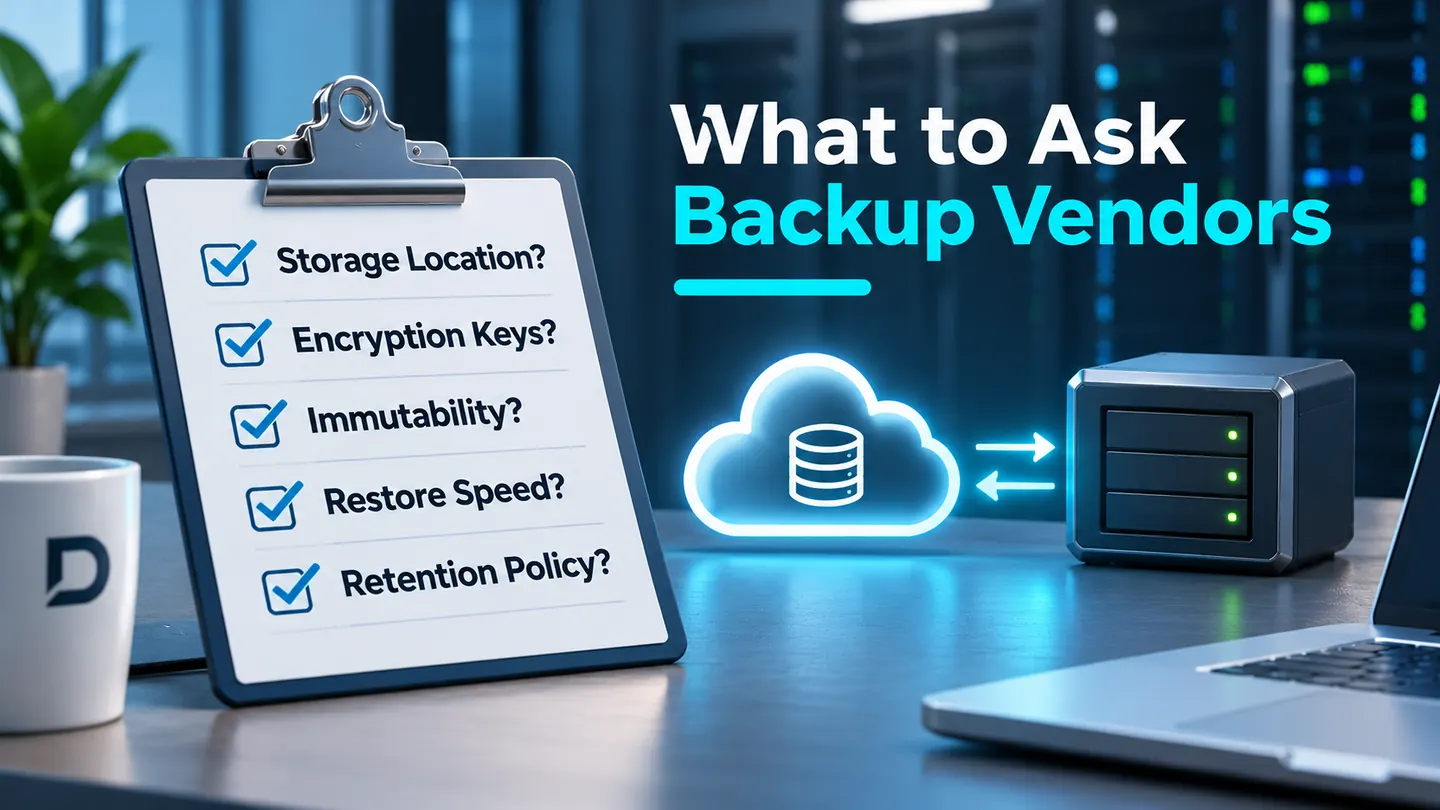
Any vendor should be able to clearly walk you through the end-to-end recovery process, not just how data gets backed up.
Recovery Model Comparison Matrix
To help with Cloud Backup vs Local Backup decisions at a glance, here is a quick breakdown of how local, cloud and hybrid backup models compare across key operational requirements:
| Requirement | Local Backup | Cloud Backup | Hybrid Backup |
|---|---|---|---|
| Fast large-scale restore | Strong | Bandwidth dependent | Strong |
| Remote employee protection | Limited unless connected | Strong | Strong |
| Site-disaster protection | Weak if copy remains onsite | Strong | Strong |
| Initial hardware investment | Higher | Lower | Moderate/High |
| Internet dependency | Low | High | Moderate |
| Easy scalability | Limited by purchased hardware | Strong | Strong |
| Offsite copy | Additional planning required | Built in | Built in |
| Egress consideration | Usually none | Provider dependent | Provider dependent |
| Large local server recovery | Strong | Can be slower | Strong |
| Endpoint recovery | Good when connected locally | Strong | Strong |
| Management complexity | Infrastructure ownership | Provider/service management | Highest, but flexible |
| Best fit | Fast local recovery | Distributed users and offsite protection | Broader resilience requirements |
As you can see from the breakdown above, there’s really no single option that fits every situation. Protecting 500 remote laptops comes with completely different priorities than restoring a massive 50TB local server setup.
That’s why the most resilient strategy usually combines a few different methods instead of trying to lock everything into one rigid setup.
D3 helps organizations plan for these exact Cloud Backup vs Local Backup scenarios as a CrashPlan Distributor in Dubai and the GCC, matching endpoint protection, retention rules, storage and recovery setups with how your team and infrastructure actually work. This regional focus is crucial because choosing a backup strategy isn’t just about picking software licenses. At its core, it’s a real-world operational decision. Your architecture simply needs to reflect how your business expects to get back up and running when something goes wrong.
That balance in Cloud Backup vs Local Backup planning is what separates basic data storage from a true disaster recovery plan.
Cloud backup protects you from losing your physical site, local backup saves you from downtime and a smart hybrid plan shields you from both.