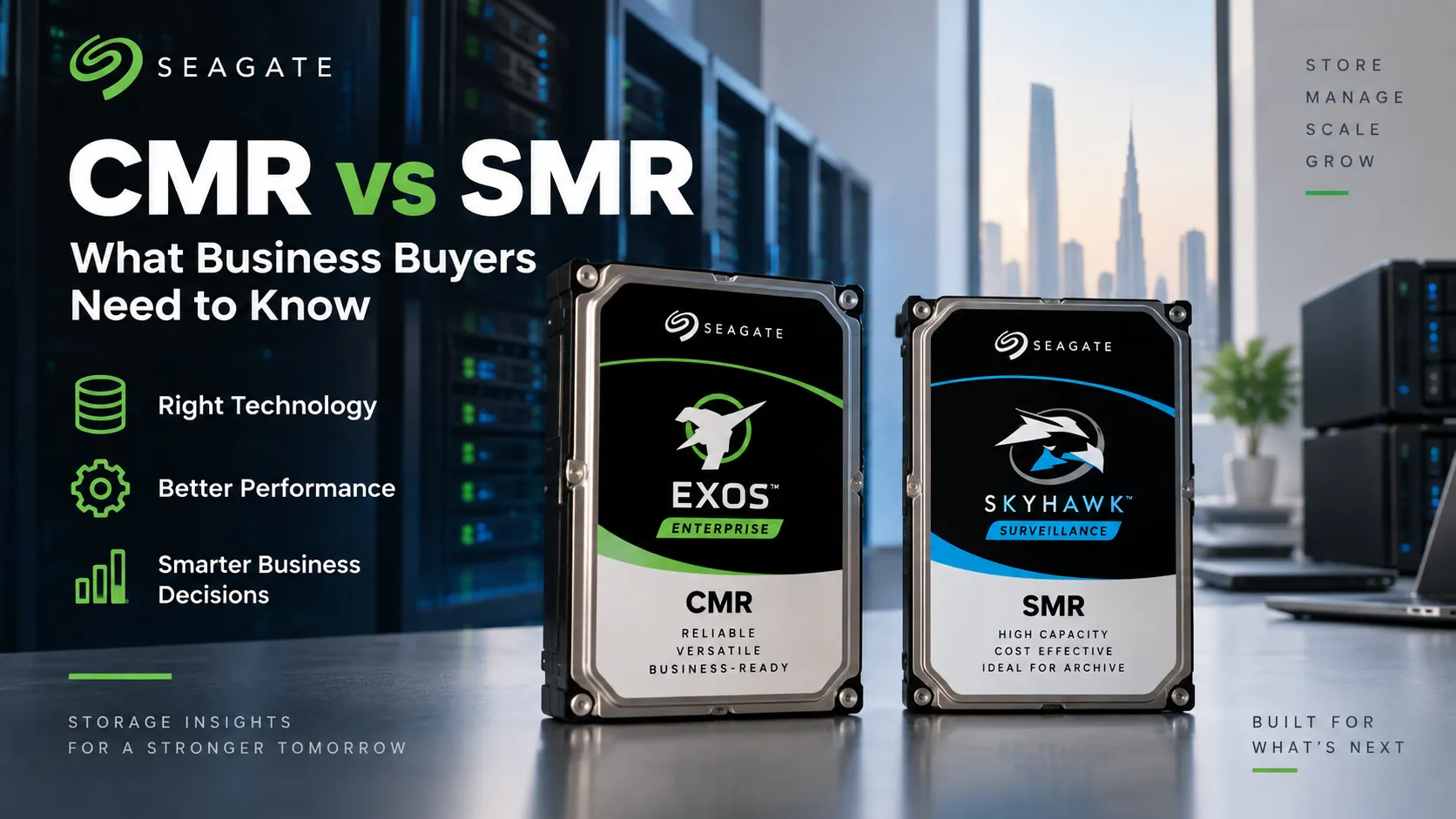
The easy answer would be to say CMR is “better” and move on. The real answer takes a bit more nuance.
Seagate currently positions CMR as its plug and play option for broad interoperability, while SMR is aimed at environments that can accommodate SMR aware architecture and predictable data flows. Seagate also uses SMR to push capacity density higher in selected products.
So the real question for an IT buyer isn’t just “CMR or SMR?”
It’s really:
What will this drive actually be doing on a daily basis?
How CMR and SMR Store Data
The core difference comes down to something physical: how the tracks are laid out on the disk platter.
A CMR hard drive places magnetic tracks side by side without overlapping them. Because each track sits in its own dedicated space, the drive can rewrite data in one spot without disturbing the neighboring tracks.
This traditional layout naturally handles the random read and write demands of standard operating systems, NAS devices and everyday storage software.
SMR (Shingled Magnetic Recording) takes a completely different approach. It overlaps the tracks slightly, much like shingles on a roof. By squeezing those tracks closer together, manufacturers can boost areal density fitting a lot more data onto the exact same physical platter. That’s the main advantage. The trade off appears when existing data has to be modified.
Because the tracks overlap, modifying data on one track means neighboring tracks in that zone often have to be reorganized and rewritten too. A technical paper from Seagate details how SMR breaks away from traditional independent sector writes, requiring data to be written sequentially in a single shingled direction.
That’s why comparing CMR and SMR purely on storage capacity doesn’t tell the whole story. The real difference comes down to how each technology handles writing data.
Random Writes and Sustained Performance
To see why this matters, consider two different companies.
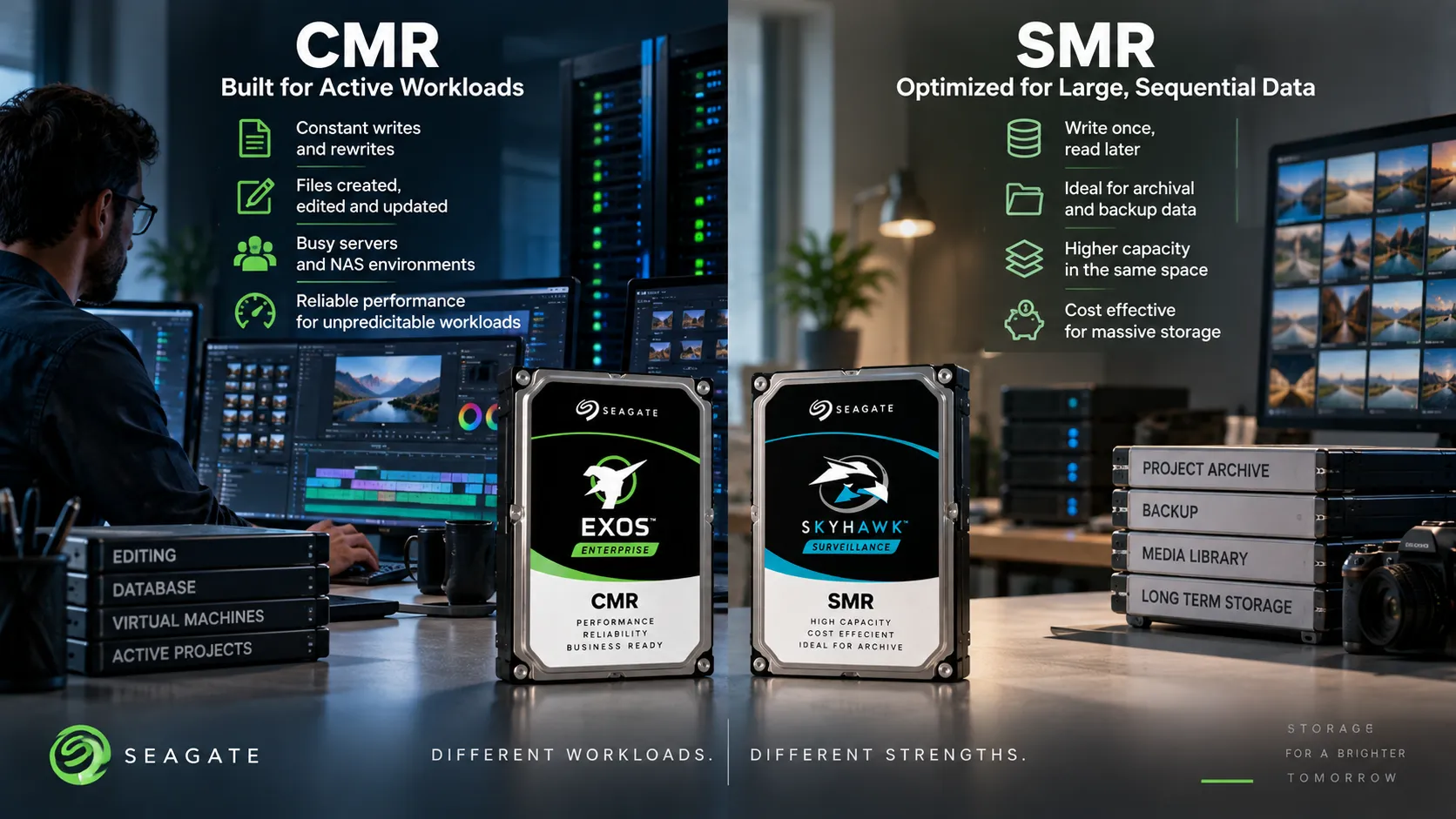
Company A mostly archives finished video projects. Big files get saved once, sit on the drive and only get read now and then.
Company B runs a busy active server where files are constantly created, edited, saved over and deleted throughout the day.
If you only look at overall capacity, both workloads look pretty much identical on paper. From the drive’s perspective, they are very different.
CMR drives handle constant random rewrites with ease since changing data on one track won’t interfere with adjacent tracks. That makes CMR a reliable, hassle free choice for busy environments with unpredictable write patterns.
SMR shines when you’re writing large, continuous streams of data. But things start getting trickier when a system sends constant random updates. That doesn’t mean SMR drives suddenly stop working. It means the storage architecture has more work to do.
Seagate’s guidance points out this exact distinction. If you want to use SMR, you need to be ready to manage the storage stack directly, use SMR aware software, tune system behavior, plan predictable data flows and handle drive operations at the zone level.
That gives IT buyers a clear rule of thumb. If you’re buying a drive for a conventional NAS and you don’t want the recording technology to influence how applications or the storage system are designed, CMR is usually the simpler route. On the flip side, if you’re building custom large scale infrastructure and control the entire software stack, SMR is definitely worth considering.
And the big draw here is raw capacity. By overlapping tracks, SMR packs significantly more data into the exact same physical footprint. Seagate highlights SMR specifically for organizations looking for cost effective ways to scale up massive amounts of storage. Different use cases, different strengths.
Device-Managed vs Host-Managed SMR
Now, this is where the terminology gets a bit overwhelming. Not all SMR drives handle those overlapping tracks in the exact same place. With device-managed SMR, the drive itself does most of the heavy lifting. To your system, it looks and acts just like a standard storage drive.
That convenience makes integration easier, but the drive still has to manage the consequences of shingled writes internally. Under certain sustained or random-write workloads, background data organization can therefore affect performance.
Host-managed SMR, on the other hand, flips the script. Here, the main system knows the drive uses zoned storage and actively dictates how data is written. Instead of pretending it’s dealing with a traditional drive, the system’s software is built specifically for SMR.
That requires more sophisticated infrastructure. But when you’re operating at massive scale, that trade off is often well worth it. If a cloud provider owns the whole environment, from the OS down to the storage software, they can fine tune data placement and get maximum storage density out of every drive.
Compare that to a small business adding a new drive to a local NAS, the last thing they want to do is overhaul their entire software stack first. That’s why simply seeing “SMR drive” on a box doesn’t give you the full picture. You need to know which type of SMR it is and whether your system can actually support it.
Seagate’s current lineup shows this difference clearly. Their published CMR and SMR drive list includes both options: CMR for simple plug-and-play setups and SMR for systems specifically designed to handle its unique demands.
At the end of the day, SMR technology itself isn’t the problem. The issue only arises when you match the wrong drive technology with the wrong workload.
What Changes During a RAID Rebuild
If you’re a business buyer, this is the section you really want to pay attention to.
Imagine your RAID array is having a rough day. One drive fails, so you slot in a replacement. Now the system has to rebuild all that lost data on the fly, all while your team keeps using the array for their regular work. That is already a demanding storage operation.
With CMR drives, sustained writes and rewrites stick to standard patterns, so the RAID controller knows exactly what to expect.
With SMR, things get a bit unpredictable depending on the workload. Rewriting data means managing entire zones, which can trigger extra background processing and cause a heavy rebuild to behave very differently than daily operations.
That doesn’t mean you should write off SMR completely by claiming “SMR doesn’t work with RAID.” That statement is just too simplistic.
Compatibility depends on the specific drive, SMR implementation, RAID platform, controller or software, workload and vendor qualification. Still, it’s a clear reminder not to pick drives for an array based solely on SATA compatibility and capacity. Just because a drive physically fits into a bay doesn’t mean it’s validated for your workload.
In RAID setups, rebuild performance is crucial because your system is already running without full fault tolerance. Any unexpected slowdowns just leave you exposed for longer.That’s why enterprise buyers should always double check exact model specifications instead of assuming all drives of the same capacity act the same way.
Fortunately, Seagate makes this easy by clearly stating the recording technology used across all their drive lines. When buying storage, the exact model number matters much more than the label color.
Choosing Drives for NAS and Bulk Storage
Now we get to the practical decision.
If you’re running a standard business NAS, handling shared team files, regular backups, multiple user requests or RAID rebuilding, CMR is almost always your safest asset. It just works without extra hassle. Seagate’s product line directly reflects this reality.
Their IronWolf and IronWolf Pro series stick strictly to CMR for conventional capacities, as do the ultra-high-capacity Mozaic IronWolf Pro models.
That distinction matters because a typical NAS isn’t just a digital attic where files sit quietly.
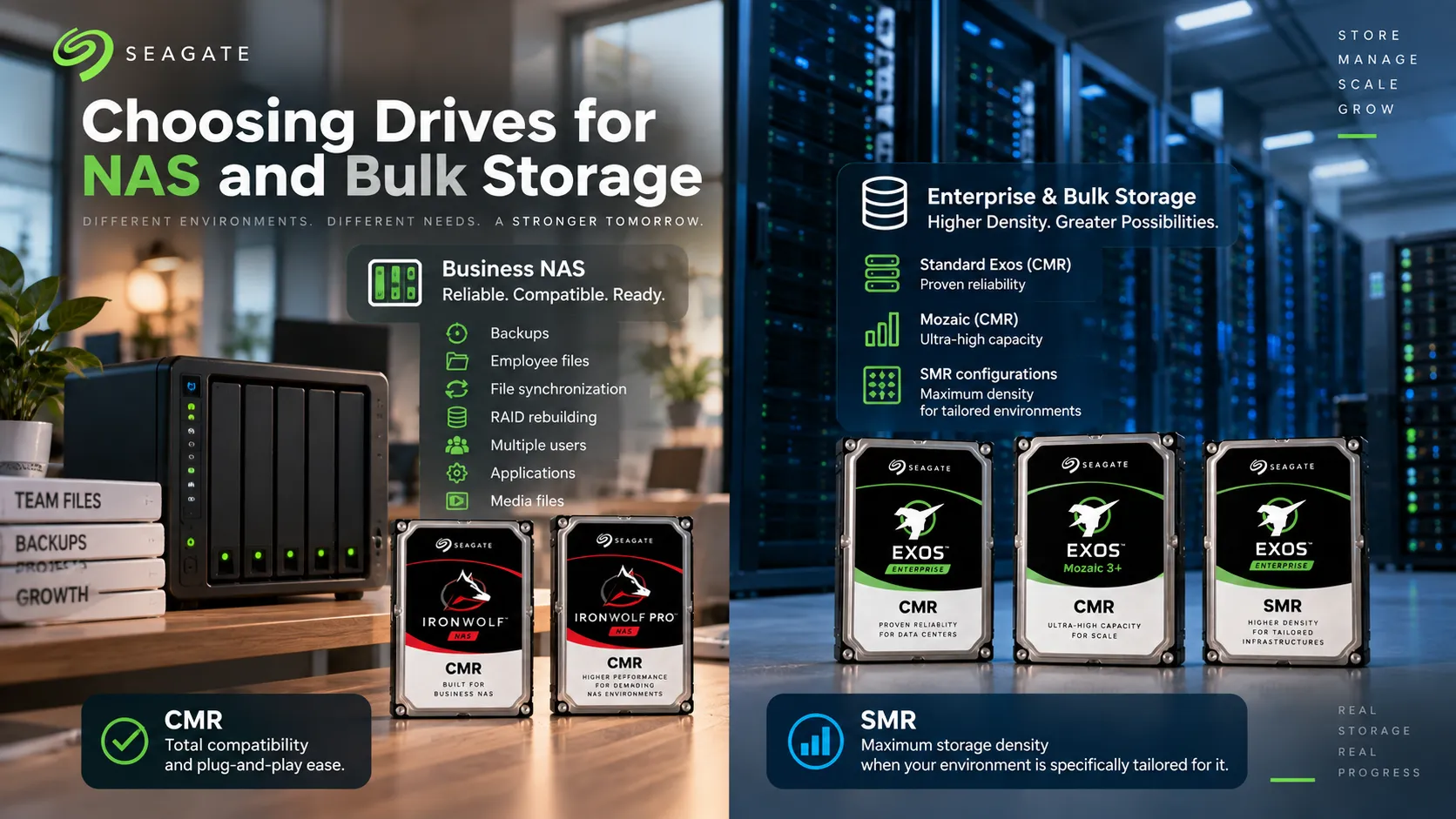
On any given workday, a business NAS might be juggling all of this at once:
- accepting backups;
- serving employee files;
- synchronizing folders;
- rebuilding RAID;
- running applications;
- receiving media;
- responding to multiple users.
Those mixed workloads benefit from predictable drive behavior.
When you look at enterprise setups, the Seagate Exos lineup shows how both tech choices play distinct roles.
Standard Exos drives use CMR, while higher capacity Mozaic models also leverage CMR, yet Seagate offers specific SMR configurations for drives pushing even higher density limits. This isn’t random; it’s by design. At data center scale, storage operators may be willing to design software and workflows around SMR in exchange for substantially higher density.
Seagate previously demonstrated this strategy with Exos X24: the standard enterprise model used CMR at 24 TB, while selected cloud customers were offered an SMR configuration at higher capacity. That balance captures the real difference between CMR and SMR far better than declaring one superior to the other.
CMR prioritizes total compatibility and plug-and-play ease.
SMR prioritizes maximum storage density when your environment is specifically tailored for it.
For growing businesses, factoring this in from day one will save major headaches as your storage scales up from terabytes to petabytes.
How to Check a Drive Model
First off: don’t just guess or assume anything about the drive. Before adding any drive to your cart, look up its exact model number and double check the manufacturer’s spec sheet.
It’s surprisingly common for two hard drives from the exact same brand, sharing the same physical size and interface, to use completely different recording tech under the hood.
To make things easier, Seagate maintains an official CMR and SMR drive list that clearly lays out which technology powers each product line, including Exos, IronWolf, IronWolf Pro, BarraCuda, FireCuda, Archive, SkyHawk and SkyHawk AI.
Here is a quick breakdown of how Seagate currently positions its drive families:
| Seagate family | Current recording options shown by Seagate | Typical positioning |
| IronWolf | CMR | NAS |
| IronWolf Pro | CMR / Mozaic HAMR CMR | Professional and commercial NAS |
| Exos | CMR / Mozaic HAMR CMR / SMR | Enterprise and data-center storage |
| SkyHawk | CMR | Video surveillance |
| SkyHawk AI | CMR / Mozaic HAMR CMR | AI-enabled surveillance |
| BarraCuda | CMR and SMR depending on capacity/model | General desktop storage |
The key takeaway from that chart is the phrase depending on model. Seagate’s list currently includes, for example, both CMR and SMR configurations within the broader BarraCuda portfolio.
So before sign-off on a hardware order, run through this quick sanity check:
Product line → specific model → total capacity → recording method → workload fit → system compatibility.
Taking five minutes to verify these details up front can save you from a very frustrating and costly headache down the line.
If you are sourcing drives through D3, working with an authorized Seagate distributor can make model selection much easier. D3 supports businesses across Dubai, the GCC and MENA with Seagate solutions ranging from Exos enterprise HDDs and Nytro SSDs to SkyHawk surveillance drives and complete storage systems.
That lets you focus on the question that actually matters:
What are you actually trying to build?
Workload and Compatibility Checklist
Before you jump in and choose between CMR and SMR, take a quick pass through this checklist to make sure you’re getting the right drive for your setup.
- What is the workload?
A NAS, RAID array, surveillance recorder, backup target, archive and hyperscale object store should not automatically receive the same drive. - How frequently will data change?
If the environment constantly performs random writes and rewrites, that should influence the choice. - Is performance expected to remain consistent during sustained writes?
Don’t judge a drive solely by a short benchmark. - Will the drives operate in RAID?
Check the storage vendor’s compatibility list and the exact drive model before deployment. - What happens during a rebuild?
Consider degraded-state and rebuild behavior, not just healthy-array performance. - Does the host understand the SMR implementation?
Host-managed SMR needs an architecture designed to work with it. Seagate specifically identifies SMR-aware software and zone-level management among the capabilities needed to deploy SMR effectively. - Is maximum capacity density the priority?
This is where SMR can become particularly attractive. Seagate says track overlay allows SMR to increase areal density and provide more capacity per drive without sacrificing reliability or durability. - Do you want broad plug-and-play interoperability?
Seagate specifically prioritizes CMR for this reason. - Are you buying the right product family?
Don’t put a desktop drive into an enterprise workload simply because capacity and connector match. - Have you checked the exact model?
Never infer recording technology from capacity alone.
There’s a bigger picture to keep in mind here. Storage costs skyrocket when teams buy raw gigabytes instead of matching their actual workload.
A 20 TB drive isn’t just a 20 TB container. Everything under the hood, recording tech, workload ratings, firmware and overall design, determines whether it will actually deliver the performance your business expects.
That’s where D3 steps in as a trusted Seagate distribution partner across Dubai, the GCC and MENA. Instead of treating hardware as a simple spec sheet, D3 helps organizations pair the right drive tech with the precise environment it needs to support.
If you’re running a standard NAS with a mix of reads and writes, CMR is almost always the easiest, most reliable way to go.
If you’re building specialized, large scale systems designed from the ground up to handle zoned storage, SMR gives you serious storage density advantages.
Neither acronym wins on its own. It all comes down to what you’re asking the drive to do.
And when you’re ordering drives at scale, making the right call up front saves a world of trouble when that first RAID rebuild hits.