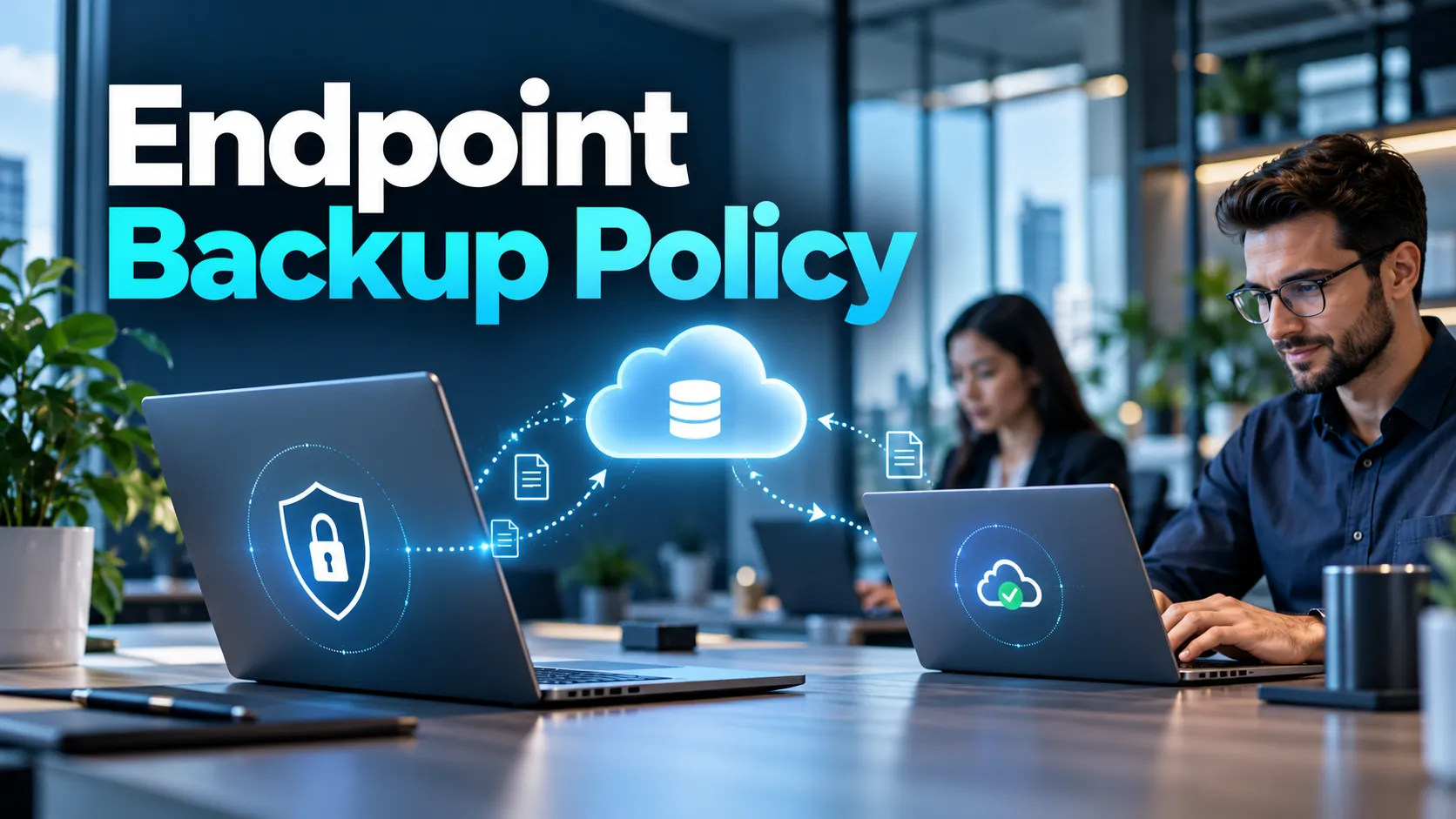
Even today, a huge amount of business data still sits on employee laptops the most unpredictable part of any IT setup.
It happens all the time: a sales manager saves a price list to their desktop before a flight, an engineer works locally to avoid a slow shared drive, or a finance team member downloads reports to work offline. Even senior leaders might edit sensitive presentations on their home Wi-Fi.
These habits are perfectly normal, which is exactly why endpoint backup is still so important.
Despite heavy investments in the cloud and shared drives, critical files often stay outside those central systems. Sometimes it’s because a user hasn’t uploaded the latest version yet, or they’re dealing with a massive file that’s easier to keep locally.
Other times, applications save data in hidden folders that users don’t even realize are there.
When the device is lost, damaged, stolen, encrypted by ransomware or replaced, IT discovers whether that data was truly protected.
An effective Endpoint Backup Policy must solve this problem without making employees change the way they work. Backups should happen automatically, adapt to different network conditions and remain quiet enough that users do not disable them or complain that their devices have become slow.
For companies in the GCC with people traveling or working remotely, this balance is key. A setup that works perfectly in a Dubai head office might struggle when an employee connects from a hotel or a small regional branch.
The point isn’t just to put backup software on every laptop.
The real goal is to build a reliable system that keeps data safe, gives IT full visibility and lets employees get on with their jobs without the security getting in the way.
Why Endpoint Data Is Still Business-Critical
Moving to the cloud has changed how we store things, but it hasn’t gotten rid of the need for local backups.
Every day, employees create everything from contracts and designs to financial models and research right on their desktops. While many of these eventually make it to a shared platform, plenty of others sit on the device for weeks at a time.
This creates a visibility problem for IT.
A central storage system can only protect the files it actually sees. If the only copy of a project is on a single laptop, the business has nothing to recover if that hardware fails.
Sync-and-share tools don’t always solve this either. They usually only protect specific folders that users remember to use. Plus, sync can actually spread problems if a file is accidentally deleted or encrypted by ransomware, those changes often sync right up to the cloud copy.
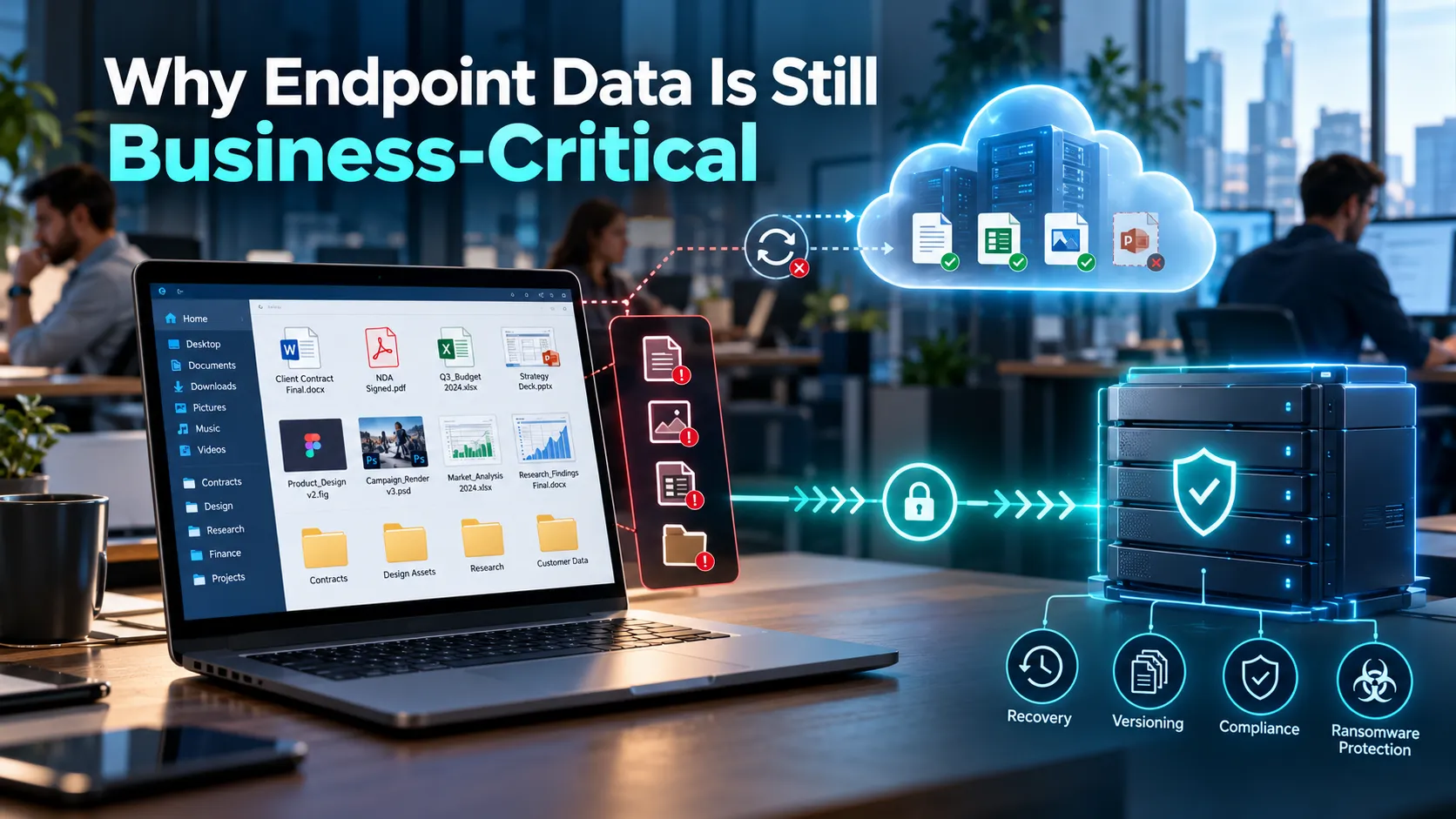
Endpoint backup has a different purpose. It creates a separate copy of device data so that files can be restored after accidental deletion, hardware failure, malware, theft or another disruptive event. Businesses working with a CrashPlan Distributor can also get help selecting the right deployment, licensing and support approach for their endpoint environment.
That distinction is important because the endpoint itself may be temporary, while the data on it is not.
Laptops get replaced, re-imaged or damaged in transit all the time. A business shouldn’t lose its hard work just because a piece of hardware reached its expiration date.
Endpoint data is also vital for legal and compliance needs. You might need to dig up an old version of a document, save files from a former employee or look into data for an internal investigation.
Because of this, your Endpoint Backup Policy needs to cover more than just which laptops have the software installed. You should decide:
- Who handles the most sensitive local data
- Which folders and file types are must-haves for protection
- How often you need to capture changes
- How long you need to keep old versions around
- What happens to the data when someone leaves the company
- Who is allowed to search for or restore that information
A strong Endpoint Backup Policy assumes that users will not always save files in the correct place. Protection should be automatic rather than dependent on perfect employee behaviour.
That is especially important in organisations where technical teams, creative users, executives and travelling staff work with large or frequently changing files. The data may be difficult to recreate even when it does not appear inside a formal business system.
Remote Work, Lost Devices, and User Error
Risks to your data go way beyond just cyberattacks. Simple human error is actually one of the biggest culprits. Someone might delete the wrong folder, save over the final version of a document, or lose files during a routine system update.
These might seem like small issues compared to ransomware, but they waste a lot of IT’s time and stop people from getting their work done.
Lost or stolen devices are another hurdle. Even if encryption keeps the data safe from prying eyes, the employee still needs that data back on a new laptop fast. Without a backup, the security team might be happy the data is “safe,” while the employee is stuck with no way to work.
Remote work makes recovery planning more complicated.
An employee may rarely connect to the corporate office network. Their device may switch between home broadband, mobile data, public Wi-Fi and a company VPN. If the Endpoint Backup Policy only works reliably when the laptop is inside the office, protection will become less effective precisely for the employees who move around the most.
CrashPlan suggests that backup traffic can really bog down a VPN. They recommend using things like bandwidth limits or split tunneling to keep things running smoothly for remote staff.
This is where a smart Endpoint Backup Policy makes a difference.
IT teams should decide how endpoint backups behave under different conditions. For example, large initial backups may be restricted on mobile hotspots, while incremental changes continue over home or office broadband. The organisation may allow backup traffic to travel directly to the cloud rather than passing through the company VPN.
The policy should also account for devices that are regularly offline. Backup systems designed for endpoints should be able to resume when connectivity returns instead of restarting the entire process.
User error should be treated as an expected event, not an exception.
A practical policy should make it easy to recover from:
- Accidentally deleting a file
- Mistakenly editing or overwriting something
- File corruption
- System updates that go wrong
- Lost or stolen hardware
- Routine device replacements
- Ransomware attacks
- Preserving data when an employee moves on
- General hardware failure
The recovery process should be so simple that an employee can get their files back without a long back-and-forth with IT.
If getting data back is a headache, people will start creating their own workarounds like emailing files to themselves or using unapproved storage. A smooth, easy experience keeps everyone using the systems IT has already approved.
Backup Frequency and Bandwidth Control
An Endpoint Backup Policy should protect recent work without creating noticeable performance problems.
This is where frequency and bandwidth control need to be designed together.
Backing up once each night may be suitable for a desktop computer that remains in the office. It is less effective for a laptop that is turned off at the end of the working day or frequently leaves the network. If the scheduled window is repeatedly missed, the device may go several days without a current recovery point.
Near-continuous or frequent incremental backup is usually more appropriate for employee endpoints. Instead of transferring the entire dataset repeatedly, the software captures changes as work is created or modified.
CrashPlan highlights that automated, near-continuous backups and efficient bandwidth use are vital for laptops that are constantly jumping between different Wi-Fi connections.
Of course, you should set the frequency based on how often the data actually changes.
A legal team editing contracts throughout the day may require frequent recovery points. A device used mainly to access browser-based applications may justify a less aggressive policy. Applying the same configuration to every user can create unnecessary traffic without improving business resilience.
Bandwidth controls help maintain that balance.
CrashPlan lets you change transfer settings depending on whether a user is active or away or based on peak office hours. You can even exclude specific Wi-Fi networks or set hard speed limits.
A sensible policy might allow:
- Lower transfer rates during business hours
- Higher transfer rates when the user is away
- Full-speed backup overnight
- Direct cloud traffic for remote users
- Restrictions on metered or mobile connections
- Different settings for offices with limited WAN capacity
The initial backup deserves particular attention because it is usually much larger than later incremental backups. Rolling out the software to hundreds of devices at the same time can create avoidable network congestion.
A phased deployment is often more practical. IT can begin with selected departments, measure actual bandwidth use and adjust the policy before expanding across the organisation.
Performance settings also need to be tested rather than guessed.
Setting limits too low might seem safe, but it can stop backups from finishing at all. CrashPlan notes that if you restrict the speed too much, the software might struggle to talk to the server or update its configuration.
Your Endpoint Backup Policy should clearly define what a “protected” device actually looks like.
Think about things like:
- How old can the latest backup be before it’s a problem?
- How many laptops are allowed to be “offline” at once?
- How long should that first big backup take?
- When should IT step in if a device keeps failing to connect?
- Which departments need the fastest recovery times?
You have to keep an eye on everything centrally. Just because the software is installed doesn’t mean the data is actually safe in the vault.
IT teams need visibility into failed jobs, devices that have not connected, incomplete initial backups and systems where users removed permissions or prevented the software from accessing protected folders.
Self-Service Restore and Device Migration
Recovery is where an Endpoint Backup Policy proves its value.
If every single deleted file turns into a support ticket that takes hours to solve, your IT team will be overwhelmed and your employees will be stuck.
Self-service restore allows authorized users to recover their own files or earlier versions without waiting for an administrator. This is especially useful for common incidents such as accidental deletion or unwanted edits.
The process should be simple:
The employee finds the file, picks the version they need, hits restore and gets right back to work.
IT should still control which users can restore data and whether sensitive departments require administrator involvement. The policy may allow general users to recover their own files while limiting cross-user restores to authorised IT or compliance staff.
CrashPlan’s application allows users to download backed-up files from their registered devices, while administrators can also perform remote “push restores” from the console to a target device.
That kind of flexibility is great because every recovery situation is different.
Sometimes an employee needs one spreadsheet. In another case, a failed laptop must be replaced and the user’s working files restored to a new device.
Device migration should therefore be included in the Endpoint Backup Policy rather than treated as an unrelated IT process.
A cloud-based endpoint backup can simplify migration by allowing the user’s data to be restored to replacement hardware without relying on the original laptop. CrashPlan describes self-service device refresh as a way to reduce manual file-transfer work and help users move data to a new computer using their existing backup.
This makes routine hardware upgrades much smoother.
Instead of manually copying files or worrying about what got left behind, you just use the backup as the source. It ensures nothing even those hidden folders gets missed in the move.
When planning for new devices, make sure you know:
- Which data should move over automatically
- If personal files should be left behind
- Who needs to approve a full-device restore
- How long you’ll keep data from the old, retired device
- How to handle moving data between different operating systems
- How to double-check the recovery before wiping the old drive
Never get rid of an old laptop until the employee confirms all their critical files are safe and working on the new one.
Testing is also key. CrashPlan recommends running regular restore tests so your team knows exactly what to do when a real emergency happens.
A policy that only describes how backups run is incomplete. It must also explain how the organisation gets data back.
Security, Encryption, and Compliance Requirements
Endpoint backup contains copies of the same sensitive information businesses are trying to protect on employee devices.
It therefore needs strong security of its own.
Data should be scrambled before it even leaves the laptop, stay that way while it travels over the web and remain encrypted once it lands in the vault. Only the people who actually need to manage or restore files should have the keys to get in.
CrashPlan states that file data is encrypted on the endpoint before being transferred to its backup archive and that decryption requires the appropriate archive encryption key.

Encryption alone is not enough. The Endpoint Backup Policy should also address:
- Multi-factor authentication
- Role-based administrative access
- Separate permissions for policy changes and restores
- Audit logging
- Retention controls
- Offboarding procedures
- Legal holds
- Data residency
- Encryption-key ownership and recovery
Managing these digital keys is a big deal. If they’re handled well, your data is safe; if you lose them, you might find yourself locked out of your own backups forever.
CrashPlan’s documentation warns that certain user-controlled encryption credentials cannot be recovered by technical support if the organisation loses them.
That’s why it’s vital to decide who owns those keys and how you’ll handle emergency access before you flip the switch on a new system.
Rules about keeping data vary depending on your industry. A hospital, a bank and a local shop all have different needs for how long they keep files and who gets to see them.
For businesses here in the GCC, you also need to think about where that data is physically stored and if there are local rules about sending it across borders. It’s worth a quick chat with your legal or security team to make sure everything lines up.
And of course, we can’t ignore ransomware.
CISA recommends maintaining encrypted backups, keeping protected copies offline or otherwise separated where appropriate and regularly testing backup availability and integrity.
For endpoints, the recovery platform should preserve historical versions so that IT can return to a point before encryption occurred. The organization should also prevent ordinary users or compromised endpoint accounts from deleting their own recovery history without appropriate controls.
Security must not make recovery so complicated that nobody can use it. The aim is controlled accessibility: authorised people should be able to restore data quickly, while attackers and unauthorised users cannot alter or remove protected copies.
Endpoint Backup Policy Checklist
Before you sign off on your plan, take a second to make sure these boxes are checked:
- Is every single work laptop and desktop actually on the list?
- Are the most important folders being backed up without employees having to lift a finger?
- Does it still do its job when people are working from their couch or a hotel?
- Can it pick up right where it left off if the Wi-Fi cuts out?
- Are you saving changes often enough for the work your teams are doing?
- Are you keeping enough old versions so you can go back in time if you need to?
- Can employees grab their own files back without having to wait for IT?
- Is the data locked tight with encryption from the moment it leaves the laptop?
- Are your encryption keys and “break glass” plans stored somewhere safe but accessible?
- Do you run a practice restore every now and then to make sure the system actually works?
At the end of the day, a great backup policy should be something your employees never have to think about. It shouldn’t slow down their meetings or make them jump through hoops just to save a file. It should just sit quietly in the background, only popping up to save the day when a laptop goes missing or a file gets accidentally trashed.
But while it stays invisible for users, it needs to be crystal clear for IT. Your team needs to know exactly what’s going on—who’s protected, who’s offline, and where the gaps are—long before a small glitch turns into a major headache.
Tools like CrashPlan make this easy by handling the heavy lifting of versioning and bandwidth control, so you can focus on your business instead of managing schedules.
And if you’re here in the GCC, D3 is ready to help you turn these ideas into a plan that actually fits your team. We can help you figure out where your data is hiding, how to keep things moving over regional networks, and how to make sure your security setup actually helps people get their work back rather than getting in the way.
The best policy isn’t the one with the most rules; it’s the one that protects work quietly and gives it back quickly when things go wrong.