Just because two products claim to be “ONVIF compatible” doesn’t guarantee they’ll actually work the way you expect them to once plugged in. You might get a crisp video feed on your NVR, only to find that motion alerts never go through, local SD card playback is blocked, or two-way audio only works in the manufacturer’s native app instead of your main VMS software.
That doesn’t mean your hardware is broken. More often, it’s because ONVIF compatibility isn’t an all-or-nothing switch; it’s a collection of specific profiles and features that have to match up.
At its core, ONVIF gives IP security gear a common language so cameras and recorders from different brands can talk to each other. But for that conversation to work, both devices need to share the same underlying profile and support the specific features you’re relying on.
ONVIF itself explains that interoperability depends on the device and client following the same profile requirements.
If you’re specifying or buying hardware, this completely changes how you evaluate options.
Instead of simply asking:
“Does this camera work with ONVIF?”
You should ask:
“Which ONVIF profiles do the camera and recorder support, which functions do we need, and have we tested those exact functions together?”
That shift in mindset is what separates theoretical compatibility on paper from a system that actually runs smoothly after installation.
What ONVIF compatibility really means
ONVIF provides a shared communication standard for security devices from different brands, reducing the need for custom integrations.
In a standard security setup, the device is usually an IP camera, while the client is the NVR, VMS, or app receiving that video stream. However, compatibility relies entirely on specific profiles. One camera might run Profile T for advanced video streaming, while another uses Profile G for recording retrieval or Profile M for AI analytics metadata.
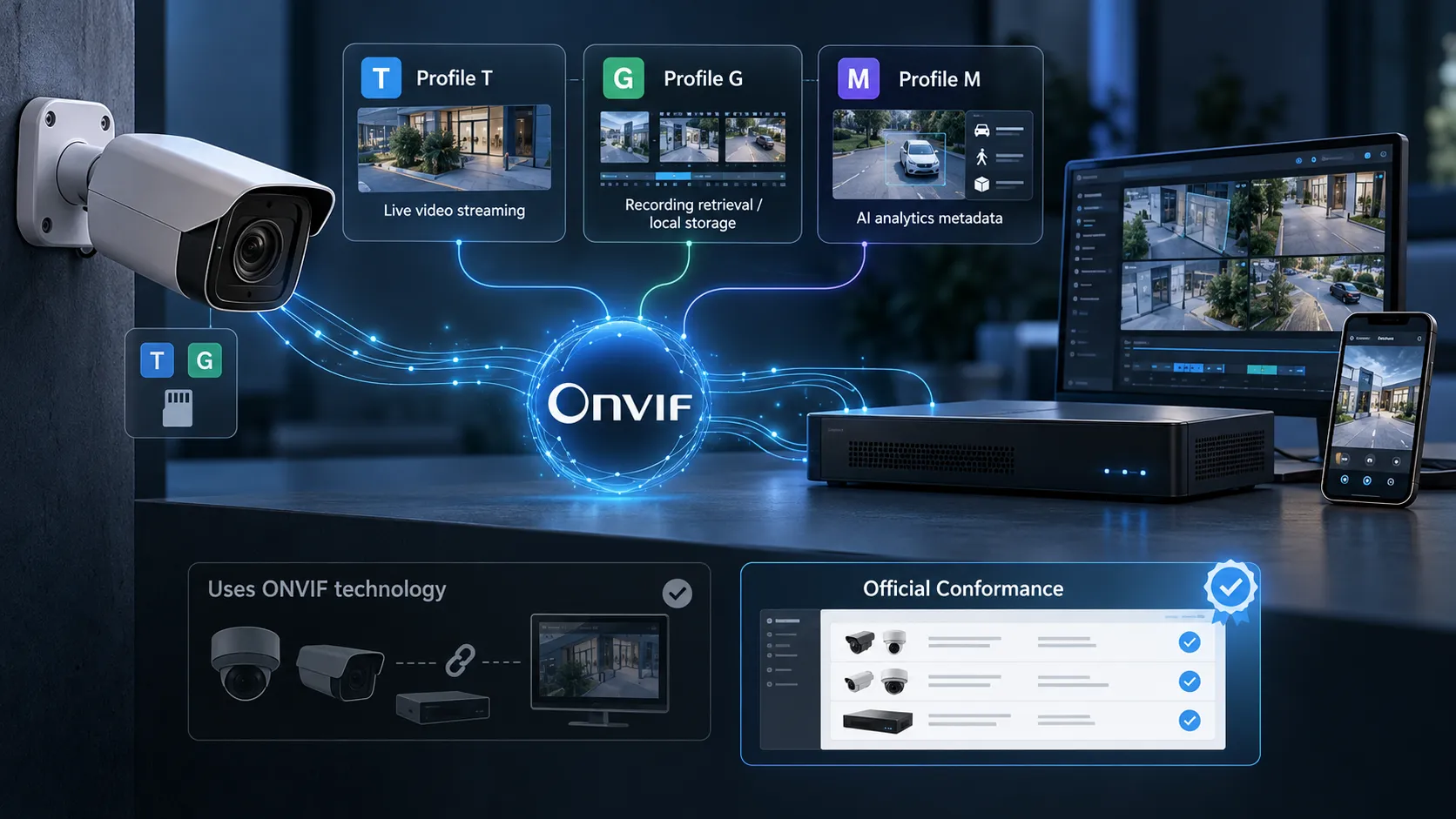
A single device can also support multiple profiles. For instance, a camera with an onboard SD card might support both Profile T for live streaming and Profile G for local storage.
That’s why simply labeling a device as “ONVIF compliant” doesn’t give you enough detail to plan a project effectively. There’s also a major difference between a brand using ONVIF APIs and earning official conformance.
To be officially conformant, a product must support at least one profile, pass the required testing and be listed in the official ONVIF database through the manufacturer’s declaration of conformance. For buyers, consultants and installers, understanding this wording is crucial. A product that uses ONVIF technology isn’t automatically officially ONVIF conformant.
Match the Device and Client Profiles
Matching profiles is the first step toward reliable ONVIF compatibility. Just because both devices mention ONVIF in their specifications does not mean they support the same functions. If a camera requires Profile T features but the NVR does not support them as a Profile T client, the integration may be limited.
When a camera and recorder share a profile, they follow a defined set of standard features. Some capabilities are mandatory, while others are conditional on the functions a product offers. This gets especially tricky when you start setting up more advanced features. You might get basic live video up and running right away, but then run into issues where:
- PTZ control does not respond
- Motion events are missing
- Audio is unavailable
- Edge recordings cannot be searched
- Analytics metadata is not passed to the VMS
- Relay outputs cannot be controlled
When evaluating ONVIF compatibility, start with the tasks your connected equipment must perform every day—not just the logos in the product specifications.
Profile T for Video Streaming
For ONVIF compatibility in a new video surveillance setup, Profile T is the main standard to review for modern video streaming.
ONVIF Profile T covers H.264 and H.265 video formats, image adjustments, motion and tamper alerts, metadata streaming and other essential video features. Depending on what your hardware supports, it also handles HTTPS streaming, PTZ controls, digital inputs, relay outputs and two-way audio. Having H.265 support is a big deal here, as modern surveillance systems rely on efficient compression to keep network bandwidth and storage costs down.
Tiandy provides a practical example. For GCC projects involving mixed-brand cameras and recorders, a Tiandy Distributor can help identify the right product range. Select Tiandy professional NVRs support third-party cameras through ONVIF Profile S/T and RTSP, while some higher-end AI NVR models list Profiles S, T and G.
Even so, exact model specifications still matter. You shouldn’t assume that features listed for one Tiandy NVR automatically apply to every other recorder in their lineup. Verify the exact NVR model, the exact camera model and the specific features supported by both.
Profiles G and M for Other Functions
Live video feeds are only one part of a complete security system. ONVIF compatibility for local recordings and analytics requires additional profile checks.
Profile G addresses onboard recording, local SD storage, video searches, retrieval and playback. A Profile G camera can record footage directly on the device or over the network, while a Profile G client lets you configure settings, request recordings and pull stored media.
This becomes relevant when a camera includes an SD card and the VMS is expected to retrieve recordings from the camera after a network outage. A camera may stream perfectly through Profile T while edge-storage retrieval still requires the appropriate Profile G support.
Profile M covers another increasingly essential area: analytics metadata and event data.
It standardizes how smart cameras share analytics data with VMS platforms, cloud systems and third-party apps. This includes real-world use cases like object classification, people counting, vehicle detection, license plate reading and custom trigger events.
A camera having built-in AI doesn’t mean its smart features will automatically communicate with a third-party recorder. If smart analytics are a priority for your project, take the time to explicitly verify Profile M support and the specific metadata types you plan to use.
Check the Conformant Products Database
For a reliable ONVIF compatibility assessment, checking the official product database should be one of your first steps before approving a mixed-vendor surveillance setup.
The official ONVIF Conformant Products database is the best starting point for verifying declared conformance and identifying the profiles listed for a product. Search for the brand and exact model number.
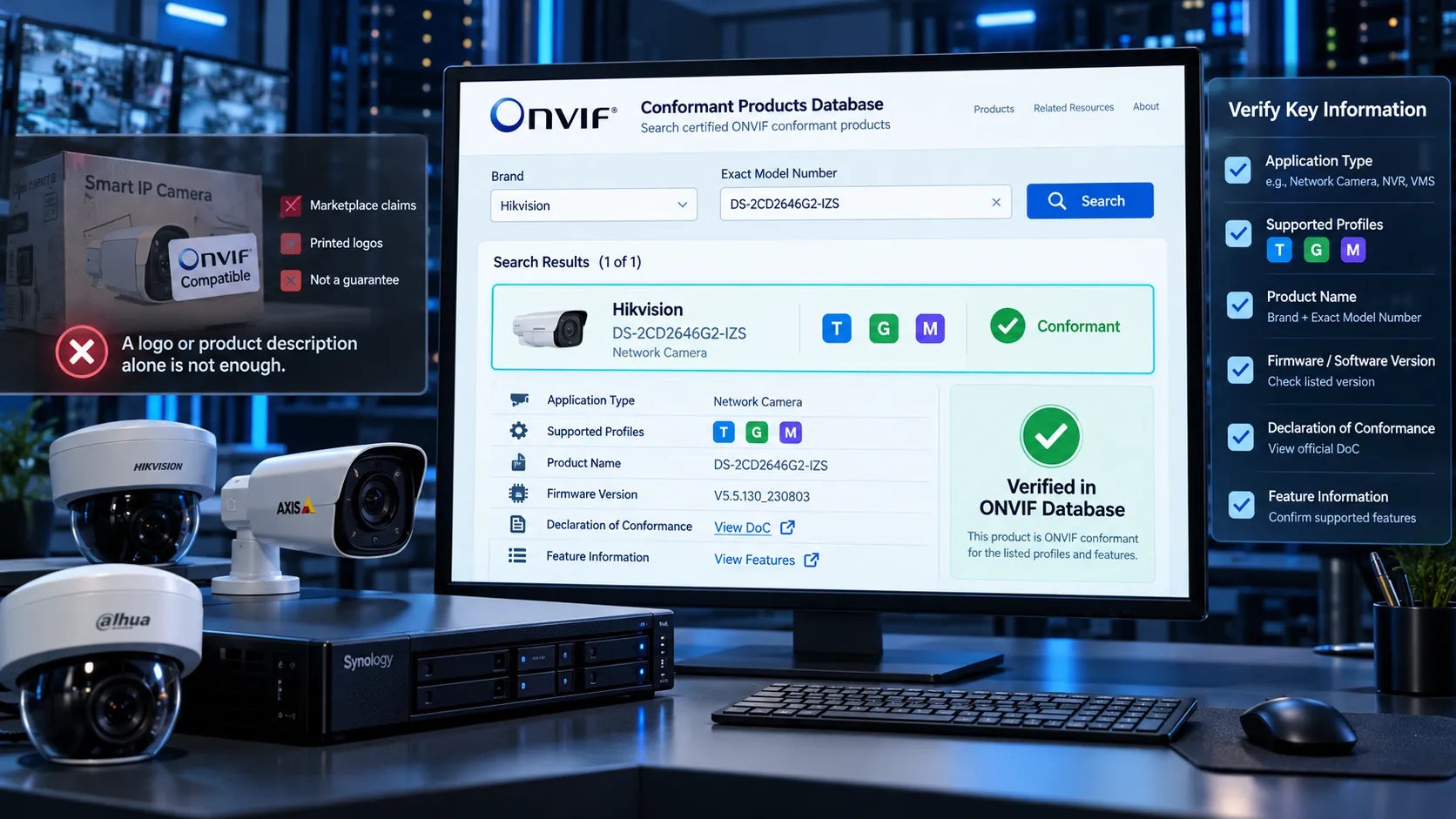
Once you find it, double-check these details:
- Application type
- Supported profile or profiles
- Product name
- Firmware or software version
- Declaration of Conformance
- Associated feature information
Do not rely only on a distributor listing, marketplace description or a small ONVIF logo printed on a box. Products may claim compatibility without appearing in the official database, and ONVIF membership alone does not establish that a particular model is conformant.
A manufacturer can be an active ONVIF member without every single device they sell being fully compliant. If you’re managing large-scale projects across the GCC with hundreds of cameras, do this verification during the submittal review stage well before any equipment arrives on site.
Confirm the Exact Firmware Version
Firmware is one of the most overlooked parts of ONVIF compatibility. Official ONVIF conformance is tied to the specific product firmware or software version listed in the declaration.
Conformance is recorded for a specific product version. Compare the installed firmware or software with the version shown in the official database. In real-world deployments, mismatches can create unexpected headaches.
Picture this: a camera gets approved based on its ONVIF database entry, but the units delivered six months down the line come pre-installed with a newer firmware release. Now, that doesn’t automatically mean the updated firmware won’t work.
However, as an integrator, you should double-check rather than hope for the best. Firmware updates can easily tweak authentication protocols, codecs, event handling, analytics behavior or API responses and the recorder’s firmware matters just as much for the exact same reason. When working on enterprise scale projects, make sure to document both sides of the equation:
Camera model + firmware build
and
NVR/VMS model + software or firmware build
Whenever new software updates are released down the road, always test key integrations in a sandbox before pushing them out to hundreds of live devices. Taking this precaution is especially vital for environments where ongoing security patches and firmware updates will continue long after initial setup.
Test Video, Events, Audio and Playback
A successful camera-added screen does not complete an ONVIF compatibility test. During commissioning, check the real-world workflows your customer relies on every day.
Start with video. Check if the recorder receives both the main stream and substream smoothly. Does it handle your intended H.264 or H.265 setup? Are the resolution, frame rate, and bitrate settings displaying correctly?
Next up, test the event triggers. Walk through a motion zone, trigger a tamper alert or activate an input where needed. Confirm that each event hits the client software and triggers the right alarm or recording action. If audio is part of the project, test it in the exact direction required. Keep in mind that working one-way audio doesn’t mean two-way audio is automatically going to work.
If the camera uses edge storage, temporarily unplug the network cable to confirm that local recording and post-reconnection retrieval function as expected. For setups relying on Profile M analytics, test the specific event metadata you need instead of just checking if an “AI” menu appears.
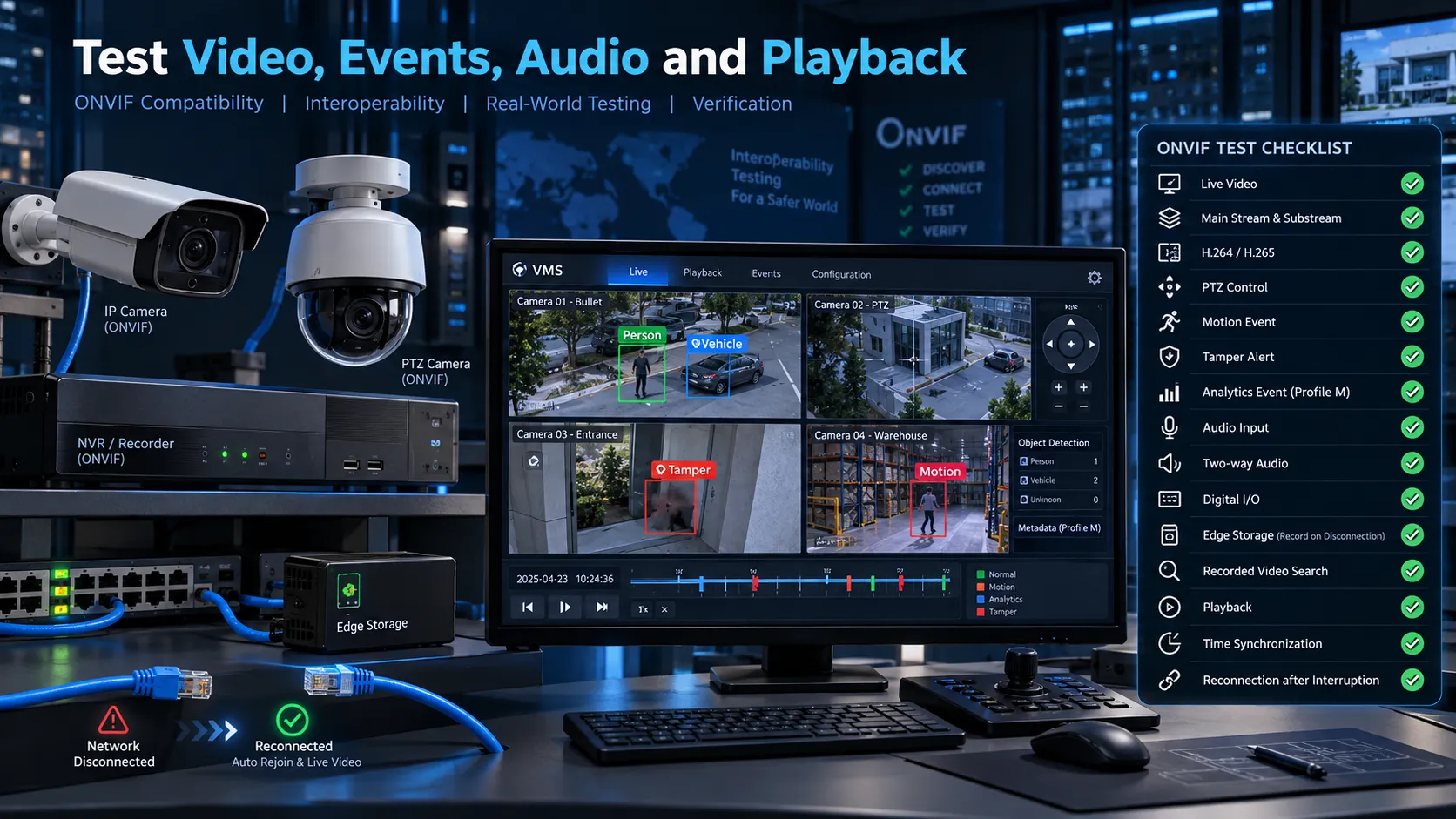
A useful compatibility acceptance test should cover:
- Live video
- Main and secondary streams
- H.264/H.265
- PTZ where applicable
- Motion and tamper events
- Analytics events
- Audio input
- Two-way audio
- Digital inputs and outputs
- Edge storage
- Recorded-video search
- Playback
- Time synchronisation
- Reconnection after network interruption
This is where a single-vendor architecture can reduce integration guesswork. D3, an AEROSKOP Distributor, offers an end-to-end surveillance range spanning cameras, NVRs, servers, PoE switching and the STRAK VMS. A unified stack can reduce variables, but it still needs practical acceptance testing.
That said, whenever third-party gear is introduced into the mix, taking the time to validate interoperability is essential.
Working with Older Profile S Devices
Profile S has been the backbone of IP security setups for years, and you’ll still find it everywhere. It was built mainly to handle basic video streaming between cameras and recorders that follow the standard. However, the industry is gradually shifting over to Profile T.
Back in October 2025, ONVIF announced that support for Profile S will officially wrap up on March 31, 2027, suggesting Profile T as the go-to alternative. In fact, the June 2026 test tool was the final release allowing manufacturers to certify new Profile S devices.
Now, that doesn’t mean your existing Profile S cameras are going to stop working overnight in 2027. According to ONVIF, existing Profile S gear will keep working just fine alongside other Profile S hardware. The main reason for the shift comes down to security: Profile S uses an older authentication method that simply doesn’t meet today’s cybersecurity standards.
If you’re managing current setups, there’s no need to rush out and replace everything at once. Start by taking stock of all your Profile S hardware. Double-check what firmware version they’re running. See if they already offer Profile T support. Work with your cybersecurity team to review authentication standards and network exposure.
For ONVIF compatibility across legacy and new equipment, map out a migration strategy that fits your security risks and equipment lifecycles. When buying new gear, put Profile T near the top of your evaluation list.
A Camera and Recorder Compatibility Checklist
Before giving the green light on any ONVIF camera and recorder combination, run through this quick checklist:
- Exact models — Note down the complete model numbers for both the camera and the recorder or VMS.
- Official conformance — Look up both devices in the official ONVIF Conformant Products database to verify their status.
- Firmware versions — Make sure the firmware installed on the unit matches what was certified in the database.
- Matching profiles — Confirm the device and client support the same profile required for the function.
- Profile T — Check support for H.264/H.265 video streams, image adjustments and critical event triggers.
- Profile G — Check edge recording, retrieval and playback if local storage is part of the design.
- Profile M — Confirm that analytics metadata and AI event triggers pass smoothly between devices.
- Profile S — Identify any legacy devices in your system and plan out a transition path toward Profile T.
- Resolution and codecs — Confirm the recorder supports the exact resolution, frame rate and compression selected on the camera.
- Events — Test motion detection, tamper alerts, and AI events hands-on during sign-off testing.
- Audio — Test both one-way and two-way audio feeds based on what the project actually requires.
- PTZ and I/O — Test presets, movement, relays and alarm inputs where applicable.
- Playback — Confirm playback functions smoothly both from the recorder and directly from camera edge storage.
- Firmware upgrades — Set up a clear testing workflow before pushing software updates across the network.
- 15. Document the result — Record the model, firmware, profiles tested and any feature limitations as part of project handover.
For GCC surveillance projects, D3 can support both approaches: flexible multi-vendor solutions using Tiandy equipment or more unified deployments using AEROSKOP cameras, recording, servers and VMS. Neither approach removes the need for hands-on engineering. A successful ONVIF compatibility plan is based on verified profiles, firmware versions and real commissioning tests.
In the end, the safest mindset isn’t assuming “both devices list ONVIF, so they’ll work fine.” Instead, it comes down to asking:
“Do both units share the required profile, are the exact firmware versions verified, and have we confirmed the key features in practice?”